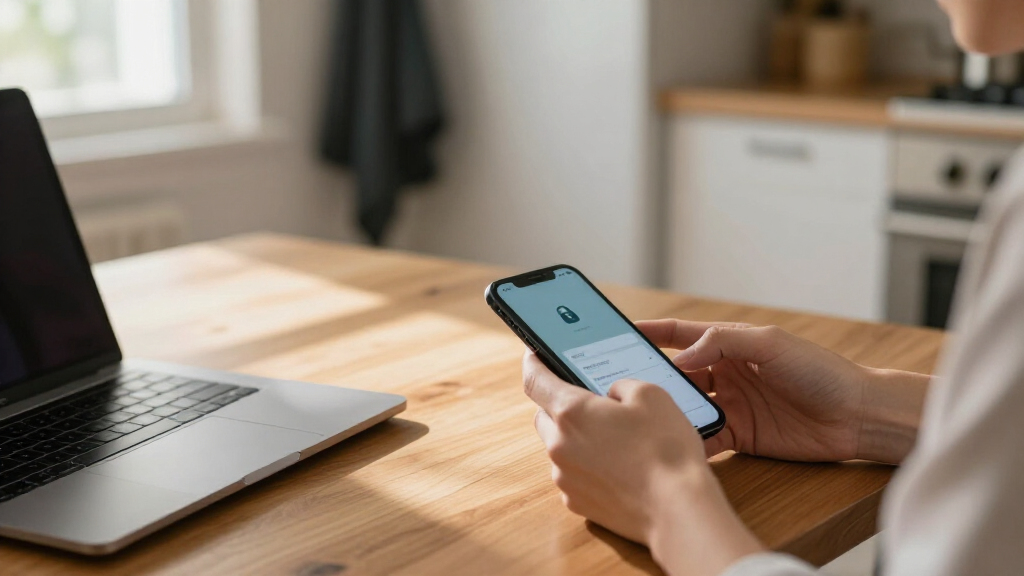

TL;DR

Get privacy and security gear delivered free — and shop member deals
- Fast, free delivery on millions of items
- Access to Prime Big Deal Days deals on October 6–7
- Prime Video, Amazon Music and more included
Encrypted storage protects information by turning it into scrambled data that can be read only with the right key. It can help keep files private if a locked phone, computer, or drive is lost, but it cannot protect an unlocked device, a compromised account, or a backup whose keys someone else controls. Turn on built-in device encryption, use strong access controls, and keep recovery information somewhere safe and separate.
Your phone can disappear between the café table and the train, but the photos and messages inside it do not have to become an open book. Encrypted storage helps by turning saved information into scrambled data that needs the right key to become readable again.
This guide explains what encryption protects, how device encryption differs from cloud storage and end-to-end encryption, and what happens when you lose a password or recovery key. You’ll also get a practical checklist for everyday devices and backups, so you can protect private files without treating encryption as magic.
Turn on built-in device encryption and use a strong screen lock to protect files on a lost or stolen device.
Check who controls the keys before trusting a cloud service with sensitive files; the word “encrypted” alone does not explain provider access.
Use unique account passwords and multifactor authentication because encryption cannot stop someone who takes over your account.
Keep recovery keys separate from the device they unlock, and confirm you can still restore an encrypted backup.
Treat device storage, cloud backups, and end-to-end encrypted messages as separate copies with potentially different protections.
What encrypted storage does when someone gets your device
Encrypted storage makes saved information unreadable without the right key, even if someone can physically reach the device or storage drive. Encryption protects information by turning it into scrambled data; it into scrambled form is not useful to someone who lacks a way to unlock it. That is the basic idea behind encrypted storage explained for everyday readers.
Think of a locked suitcase with every item inside transformed into a pattern that only a matching key can restore. The suitcase is the phone or computer, while the key is managed through a passcode, account credentials, or a security chip. If you leave your phone in a taxi, encryption can make copied files far less useful while the phone stays locked.
Many current phones and computers encrypt storage by default, though the exact setup depends on the model, operating system, and account configuration. A password is not necessarily the encryption key itself; often it helps unlock a key stored or protected elsewhere on the device. So if your screen lock is weak or the device is already unlocked, the suitcase may already be open.
Encryption protects data while stored, often called encryption at rest. It does not erase the need for a strong passcode, software updates, or careful handling. For example, a found laptop with full-disk encryption and a long passphrase presents a different privacy risk from an unlocked laptop left on a library desk.
As an affiliate, we earn on qualifying purchases.
How device, cloud, and end-to-end encryption differ
Device encryption protects files on your phone or computer, while cloud encryption depends on how a service stores and controls access to your files. End-to-end encryption is designed so that only the communicating users hold the keys needed to read the content. These labels sound similar, but they answer different questions: where is the data protected, and who can unlock it?
Imagine Priya saves a family video on an encrypted laptop, then uploads it to a cloud drive. Her laptop may protect the local copy, and the provider may encrypt the upload as it travels across the internet and while it sits on a server. Yet the provider may still be able to access the cloud copy under its key and account-recovery design.
With end-to-end encryption, the service is designed to keep the readable content out of the provider’s hands. That can limit provider access, but it makes recovery choices more consequential: if Priya loses the keys and the service has no safe recovery path, the video may be gone for good. “Encrypted” on a service page does not by itself tell you who holds the keys.
| Type | What it protects | Everyday example |
|---|---|---|
| At rest | Stored files on a device or server | A locked laptop’s local drive |
| In transit | Data moving over a network | A file upload traveling to cloud storage |
| End-to-end | Content that only intended users can decrypt | A private message between two people |
These protections can overlap. For instance, a message may be protected in transit and end-to-end, while a cloud backup of that conversation may follow a different design. Check the service’s explanation of key control and recovery before you assume every copy gets the same privacy.
As an affiliate, we earn on qualifying purchases.
Where encryption helps—and where it stops
Encryption helps most when a device or storage system is locked and someone tries to read its stored data. It can reduce the value of a stolen phone, a lost external drive, or files copied from a server. It does not prevent every kind of theft, because access can happen through an unlocked device, a compromised account, or malicious software already running on your computer.
Picture Daniel opening a phishing message on his laptop and typing his cloud password into a fake sign-in page. His laptop’s encrypted drive may still work exactly as designed, but the attacker who now controls the account could reach files stored in the cloud. Encryption is a strong door for stored information; account security is the lock on the front gate.
The same limit applies when a device is open. If someone uses your unlocked phone to browse photos, encryption usually has already done its job by making those files available to you. A short screen code, reused password, or accidental approval of a sign-in request can weaken the protection around the keys.
- It can help if a locked, encrypted phone is lost or a drive is taken.
- It cannot stop someone using a device that is already unlocked.
- It does not replace account security, updates, malware defenses, or careful recovery settings.
For example, a strong device passcode and multifactor authentication on a cloud account cover different routes into your information. Neither one makes you invulnerable, but together they close more ordinary gaps than encryption alone.
multi-factor authentication security key
As an affiliate, we earn on qualifying purchases.
As an affiliate, we earn on qualifying purchases.
Set up everyday protection in five practical steps
You can improve everyday protection by turning on built-in encryption, strengthening access controls, and planning recovery. For most people, the features already included with a current phone or computer provide a sensible starting point. Here is a simple sequence you can follow without adding specialist tools.
- Check device encryption. Look in your phone or computer’s security settings to see whether storage encryption is on. For example, a new laptop may require you to finish account setup before its built-in protection becomes active.
- Use a strong screen lock. Choose a long passcode or password that you can remember and that other people cannot guess. A birthday or four repeated digits makes a poor lock for the device that holds your travel tickets and banking apps.
- Secure the account that unlocks services. Use a unique password, ideally stored in a password manager, and enable multifactor authentication when available. This helps if someone tricks you into revealing a password.
- Save recovery information separately. Keep a recovery key or backup code somewhere safe and separate from the device it unlocks. A printed copy stored securely at home can help if the phone that holds your only copy is lost.
- Check backups and updates. Confirm whether your backup is encrypted and how its keys are recovered, then install device and app updates. A new phone backup may have its own settings, even when the old phone’s storage is encrypted.
These steps work together like a set of keys on a ring: one opens the device, another protects the account, and a spare helps you recover if the first goes missing. The best setup is one you can maintain. If a recovery method is so awkward that you ignore it, simplify the routine while keeping the recovery details private.
As an affiliate, we earn on qualifying purchases.
Keep backups recoverable without making them easy to reach
An encrypted backup is useful only if you can still recover its key. Losing the password or recovery key may make encrypted data permanently inaccessible, especially when no provider or trusted recovery contact can restore it. Backups and encryption solve different problems: one gives you another copy, while the other limits who can read that copy.
Suppose Mara’s laptop fails the night before a work deadline. She has a cloud backup, but she chose a setup where only she controls the decryption key. That privacy choice is valuable, but she also needs the recovery key she saved in a locked drawer at home; the copy on the broken laptop would not help her now.
Cloud services vary in their recovery design. Some can help restore access because they manage or can recover keys under certain conditions. Others are designed to keep the provider from reading content, which can mean fewer recovery options if you lose your credentials. Look for plain explanations of who controls keys, whether backups are encrypted, and what happens after account recovery.
Store recovery information away from the device and account it protects. For example, save a recovery code in a reputable password manager that you can access through a separate recovery plan, or keep a printed copy in a secure place. Avoid leaving the only key in the same bag as your laptop: losing the bag would take both the locked files and their spare key.
A backup protects against loss only when you can restore it; encryption protects privacy only when you can control the key.
Know what newer encryption changes mean for you
Encryption is more common by default than it was years ago, and many mainstream phones and computers now tie storage protection to a device passcode and hardware security features. Messaging services have also expanded end-to-end encryption, while cloud providers offer a range of encrypted backup and storage options. The details still vary, so check the settings and help pages for the specific device or service you use.
That progress does not mean every copy of your data has the same protection. A phone may encrypt local files while a cloud backup follows different rules, much like locking your front door while leaving a spare key with a neighbor. The neighbor may be trustworthy, but you should know who holds the key and how they can use it.
Quantum computing receives attention because sufficiently powerful future machines could threaten some public-key cryptography. Standards groups and technology providers are developing and adopting post-quantum methods, but that work is gradual. It does not mean ordinary users’ encrypted files are suddenly easy to unlock today.
Debates also continue over account recovery, legal access, and how services should respond to security investigations. There is no universal answer to whether a provider or law enforcement can unlock a particular device or service; it depends on the design, keys, access, and applicable legal process. For an everyday choice, focus on the questions you can answer: who controls the keys, how recovery works, and whether you have another safe copy.
Frequently Asked Questions
What does encrypted storage actually do?
Encrypted storage makes saved information unreadable without the right key. It can help protect files on a locked phone, computer, or drive if someone gets the hardware. It does not block access to files on an unlocked device.
Is my phone or computer already encrypted?
Many current devices encrypt storage by default, but settings depend on the model, operating system, and account setup. Check your device’s security settings or manufacturer’s guidance rather than assuming it is on.
Can the company that stores my files read them?
It depends on who controls the encryption keys. Some cloud services encrypt files but can access them under their key and recovery design; end-to-end encrypted services are built so the provider cannot read the content under normal operation. Check the service’s explanation of key management and account recovery.
What happens if I lose my password or recovery key?
You may lose access permanently if there is no working recovery method. Store recovery information somewhere secure and separate from the device it unlocks, then confirm you know how to use it before an emergency.
Does encryption protect me from hackers?
Encryption can protect stored data on a locked device, but it does not stop every attack. Phishing, stolen account credentials, malware, and access to an unlocked device can expose files through other routes. Use strong passwords, multifactor authentication, updates, and a screen lock alongside encryption.
Will encryption slow down my device?
On most modern devices, encryption usually has little noticeable effect on everyday performance because hardware and software are designed to handle it. Older devices may behave differently, but encryption is typically built into current phones and computers.
Conclusion
Remember the simple rule: encryption protects stored files when the keys and accounts around them stay secure. Turn on your device’s built-in protection, use a strong passcode, and check how your cloud backups handle keys and recovery. Keep a recovery copy somewhere separate, so one lost phone does not take every route back to your files.
A locked device is a closed book; a safe spare key lets you open it again when you need to.
Fall Picks
fall essentials
As an affiliate, we earn on qualifying purchases.