TL;DR

Get privacy and security gear delivered free — and shop member deals
- Fast, free delivery on millions of items
- Access to Prime Big Deal Days deals on October 6–7
- Prime Video, Amazon Music and more included
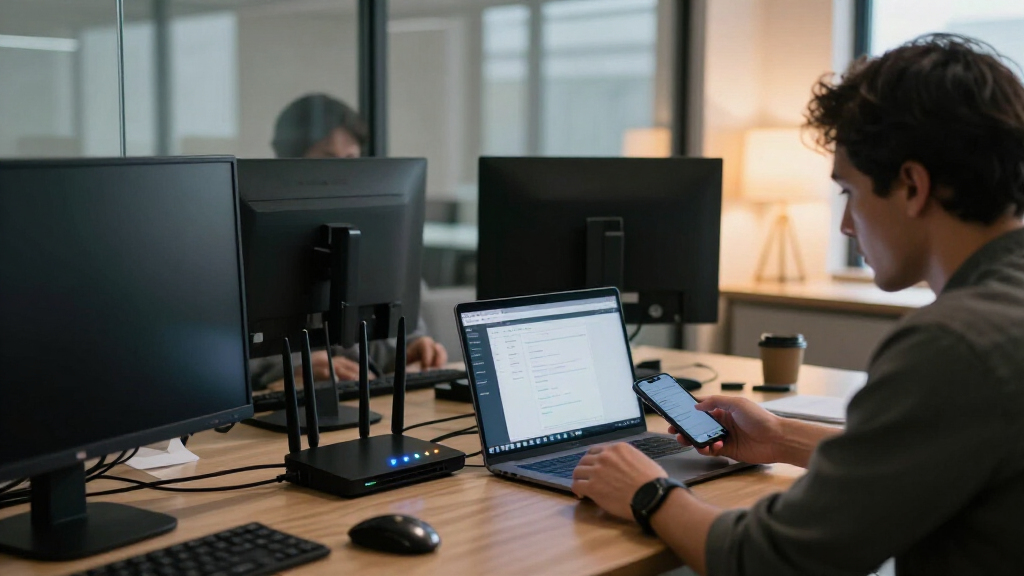
A guest network gives visitors internet access without putting them on the same network as your business computers, printers, and servers. The separation only works if firewall rules and isolation settings actually block guest devices from reaching internal resources — a different Wi-Fi name alone does nothing. Configure isolation, keep access minimal, and re-check the setup after any equipment change.
Your office Wi-Fi password is probably sitting in a text message on a vendor’s phone right now. Maybe in a notebook at reception. Maybe in the memory of a consultant who visited eight months ago and hasn’t been back since. That’s the quiet reality of guest access in most small offices — and it’s exactly why a guest network deserves real thought, not an afterthought.
A guest network gives visitors internet access without putting them on the same network as your company computers, file servers, printers, and admin tools. Done well, it’s one of the cheapest security measures you can deploy. Done badly, it’s a second door into your business with the same lock as the first one.
In this guide, you’ll learn what actually makes a guest network safe, how to choose between shared passwords and captive portals, what to do about printing and casting, and how to verify the setup still works six months from now. No fear-mongering, no enterprise budget required — just the decisions that matter in a ten-person office.
A separate Wi-Fi name or password is not isolation — firewall rules must block guest traffic from internal devices and the router’s admin interface.
Test isolation yourself: join the guest network on your phone and try to reach a printer’s web page or a desktop’s local IP. If it responds, the isolation is b…
Grant the specific service, never the network: use email-to-print or cloud print queues instead of putting guests on the main network to print.
Cap guest bandwidth at roughly 10–20% of your connection and prioritize business traffic with QoS so visitors can’t degrade staff performance.
Re-verify isolation after every router swap or firmware update, and change the guest password whenever you can no longer say who knows it.
How to Think About Guest Networks in a Small Office
A guest network gives visitors internet access without putting them on the same network as your business computers, printers, and servers. The separation only works if firewall rules and isolation settings actually block guest devices from reaching internal resources — a different Wi-Fi name alone does nothing.
“Your office Wi-Fi password is probably sitting in a text message on a vendor’s phone right now.”
The quiet reality of guest accessA Label Is Not a Wall
A guest network is a distinct access path for visitors — a separate Wi-Fi network, usually backed by a separate VLAN, that routes people to the internet without letting them touch internal devices. But it is not automatically secure just because it has a separate name or password. If the router doesn’t enforce isolation, a visitor’s laptop sits on the same logical network as your accounting desktop. Many consumer “guest modes” isolate guests from each other but still allow access to local devices — or the reverse. The feature label tells you nothing about protection.
The Hotel Corridor
Guests get a hallway to the front door, but no keycards for the rooms. Your file server, reception PC, and printer with saved scan destinations — those are the rooms.
The Core Control
Network isolation: the firewall or access point must prevent guest devices from reaching internal computers and administrative interfaces. Everything else is convenience layered on top.
Try to break in from the guest side
Connect your phone to the guest network and try to open your printer’s web interface or ping your desktop’s local IP address. If either responds, your guest network isn’t one. A failed connection attempt is the only real proof that isolation works.
Shared Password, Captive Portal, or Per-Visitor Access?
The choice comes down to a tradeoff between how much control you want and how much administration you’ll tolerate. A shared password’s weakness is spread — once it leaves the building, it never comes back. A captive portal controls how users join but doesn’t secure traffic or isolate devices by itself; it’s a front-door policy, not a wall.
| Access method | Control level | Admin effort | Best for |
|---|---|---|---|
| Shared password | ✗ Low | Minimal | Occasional visitors, trusted clients |
| Captive portal (shared) | ~ Low–medium | Low | Displaying terms, simple branding |
| Per-visitor credentials | ✓ High | Moderate | Regulated work, frequent guests |
| Managed access system | ✓✓ Highest | Higher | Multi-site offices, logging needs |
⚠ Privacy Note
A captive portal that collects names and email addresses creates data-handling obligations under rules like GDPR. If you don’t have a specific reason to log visitor identities, don’t collect them — a posted QR code that joins the network directly is simpler and cleaner.
The Five Settings That Do the Real Work
All five decisions can be completed in under an hour on capable business hardware. Follow them in order — each builds on the last. Special emphasis on the management interface: if a guest device can reach your router’s admin login page, the isolation has a hole in exactly the wrong place.
Create the guest SSID & VLAN
Distinct name, separate VLAN or segment, so the firewall treats it differently from staff traffic.
Write blocking firewall rules
Guests reach the internet and nothing else. Deny local subnets and the router’s management interface.
Enable client isolation
Stops guest devices seeing each other — essential when you don’t control what’s on visitor laptops.
Use strongest Wi-Fi security
WPA3 where possible, WPA2 otherwise, with a strong unique passphrase. Avoid open guest Wi-Fi.
Set bandwidth & client limits
Cap guest speeds or prioritize business traffic so a visitor’s video call doesn’t degrade your VoIP.
Keep Guests Comfortable — and Business Traffic First
Guest video calls and large downloads can degrade staff performance. Cap guest bandwidth at roughly 10–20% of your connection and prioritize business traffic with QoS where the equipment supports it.
✗ Resist the Instinct
Putting guests on the main network “for an hour” to print or cast gives an unmanaged, possibly infected device plenty of time to scan your internal systems. That hour is enough.
✓ The Narrow Exception
Grant the specific service, never the network: use email-to-print or a cloud print queue that works from any network. Convenience features should be enabled deliberately and narrowly.
Verify, Then Verify Again
Configure
SSID, VLAN, firewall rules, isolation, WPA3, bandwidth caps.
Phone Test
Join guest Wi-Fi, try to reach the printer page or a desktop IP.
Equipment Change
Router swap or firmware update — settings drift silently.
Rotate Password
Change it whenever you can no longer say who knows it.
Re-Test
Run the two-minute isolation check again. A failed connection is the only proof.
What a Guest Network Actually Is (and What It Isn’t)
A guest network is a distinct access path for visitors — a separate Wi-Fi network, usually backed by a separate VLAN or network segment, that routes people to the internet without letting them touch your internal devices. Think of it like a hotel corridor: guests get a hallway to the front door, but no keycards for the rooms. Your file server, your reception PC, your printer with saved scan destinations — those are the rooms.
Here’s the part most people miss: a guest network is not automatically secure just because it has a separate name or password. If you create “Office-Guest” on a router that doesn’t enforce isolation, a visitor’s laptop sits on the same logical network as your accounting desktop. The different name is a label, not a wall.
Many consumer routers make this worse with confusing “guest mode” settings. Some isolate guests from each other but still allow access to local devices. Others do the reverse. Before you trust the checkbox, check what it actually blocks — the manual or the vendor’s documentation will say.
The core control is network isolation: the firewall or access point must prevent guest devices from reaching internal computers and administrative interfaces. Everything else is convenience layered on top.
A concrete test: connect your phone to the guest network and try to open your printer’s web interface or ping your desktop’s local IP address. If either responds, your guest network isn’t one. That two-minute check tells you more than any marketing spec sheet.
For most small offices, the access method choice comes down to a tradeoff between how much control you want and how much administration you’ll tolerate. A shared guest password is the simplest option and works fine when visitor volume is low. Its weakness is spread — once the password leaves the building, it never comes back.
A captive portal — the landing page guests see before they can browse — controls how users join and can display usage terms. It can also issue individual or time-limited credentials. What it doesn’t do is secure traffic or isolate devices by itself; it’s a front door policy, not a wall.
| Access method | Control level | Admin effort | Best for |
|---|---|---|---|
| Shared password | Low | Minimal | Occasional visitors, trusted clients |
| Captive portal (shared) | Low-medium | Low | Displaying terms, simple branding |
| Per-visitor credentials | High | Moderate | Regulated work, frequent guests |
| Managed access system | Highest | Higher | Multi-site offices, logging needs |
One privacy note worth taking seriously: a captive portal that collects names and email addresses creates data-handling obligations under privacy rules like GDPR. If you don’t have a specific reason to log visitor identities, don’t collect them. A posted QR code that joins the network directly is simpler and cleaner.
And whatever you choose, remember: a guest password is not a substitute for encryption, isolation, firmware updates, and secure router administration. It’s one layer among several.
The Five Settings That Do the Real Work
Setting up a defensible guest network in a small office comes down to five configuration decisions, all of which you can complete in under an hour on capable business hardware. Follow them in order, because each builds on the last.
- Create the guest SSID and VLAN. Give it a distinct name and put it on a separate VLAN or network segment so the firewall can treat it differently from staff traffic.
- Write firewall rules that block traffic to the internal network. The guest segment should reach the internet and nothing else. Deny access to local subnets and to the router’s own management interface.
- Enable client isolation. This stops guest devices from seeing each other — worth having in any busy or public-facing office, since you don’t control what’s on visitor laptops.
- Use the strongest Wi-Fi security your devices support. WPA3 where possible, WPA2 otherwise, with a strong unique passphrase. Avoid open guest Wi-Fi unless there’s a clear reason and additional protections.
- Set bandwidth and client limits. Cap guest speeds or prioritize business traffic so a visitor’s video call doesn’t degrade your VoIP phones at 2 p.m.
The management-interface point deserves emphasis. If a guest device can reach your router’s admin login page, the isolation has a hole in exactly the wrong place. Many default firewall rule sets forget this; a deliberate deny rule takes ten seconds to add.
After configuring, run the phone test from section one again. Settings drift, and the only proof that isolation works is a failed connection attempt from the guest side.
When Guests Need the Printer (Without Opening the Floodgates)
Sometimes visitors legitimately need local services — printing a contract, casting a presentation to the conference room screen, reaching a shared folder for a workshop. The instinctive fix is to just put them on the main network “for an hour.” Resist it. That hour is plenty of time for an unmanaged, possibly infected device to scan your internal systems.
The better answer is a narrow, documented exception. If a guest needs to print, enable a specific guest-accessible print service — many modern printers and print servers support email-to-print or a cloud print queue that works from any network. That gives the visitor printing without giving their laptop a route to everything else.
Casting follows the same logic. Chromecasts and similar devices are designed for open local discovery, which is exactly what you don’t want on a guest network. Solutions exist — dedicated guest-casting modes, or putting the casting device on a third small segment — but they should be enabled deliberately and narrowly, not by loosening the guest firewall wholesale.
A real-world pattern worth copying: one small architecture firm kept a single USB cable at the reception printer for visitors. Unglamorous, zero configuration, and completely isolated. Convenience doesn’t have to mean network access.
The rule of thumb: grant the specific service, never the network. Broad access just to enable printing or casting is the most common way guest isolation quietly dies.
Will Guest Wi-Fi Slow Your Team Down?
Yes, it can — and in a small office, this is the failure mode you’ll notice first. Your internet connection is a shared pipe, and a guest running a large download or a high-definition video call competes directly with your staff’s traffic. When the sales team complains the CRM is slow every Thursday afternoon, check whether that’s the same day the partner consultancy visits.
The fixes are straightforward if your equipment supports them. Bandwidth limits cap how much of the connection a guest device can consume. Client limits cap how many guest devices can connect at once. Quality-of-service (QoS) settings let you prioritize business applications — VoIP calls, cloud apps — over bulk guest traffic. Business access points and cloud-managed Wi-Fi systems expose these controls through an app or dashboard, and features vary, so check your model’s actual capabilities.
Newer Wi-Fi standards help on the wireless side. Wi-Fi 6 and Wi-Fi 6E handle busy environments much better than older generations, and Wi-Fi 7 is entering the market — but faster wireless doesn’t fix a saturated internet line, and it does nothing for network isolation. The benefit depends on compatible devices, available spectrum, and the size of your upstream connection.
Practical baseline for a typical small office: give guests a bandwidth cap around 10–20% of your connection, limit guest clients to whatever your peak visitor count actually is, and prioritize voice traffic. That keeps both audiences happy without buying anything new.
Keeping It Working: The Maintenance Habits That Matter
A guest network is not a set-and-forget project. Equipment gets replaced, firmware updates reset settings, a new access point gets added — and suddenly the isolation rules that protected you in March are gone in November. The offices that stay safe are the ones that verify periodically.
- Test isolation after any equipment change. The phone test takes two minutes; make it a habit after every router swap or firmware update.
- Change the guest password when access spreads. There’s no fixed interval — change it when you can’t confidently say who knows it, or when a staff member with access leaves.
- Keep router and access point firmware current. Updates close real vulnerabilities, and unpatched router firmware is a genuine risk on any network segment.
- Check what “guest mode” blocks on new hardware. Feature labels vary wildly between vendors, and some isolate peers but not the local network.
- Keep employee and guest credentials distinct. Never let staff use the guest network as a convenience shortcut — it erodes the separation you built.
One more habit worth adopting: put the guest Wi-Fi name and joining instructions somewhere visible, like a card at reception. The easier guests find it to join the right network, the less often someone hands out the staff password instead.
None of this requires enterprise tooling. A capable business access point or router handles guest networks, isolation, time limits, and usage controls for a modest price — the right choice depends on visitor volume, office locations, and whether you need logging or centralized management.
Frequently Asked Questions
Do I really need a guest network in a small office?
Usually, yes — if visitors connect to your office Wi-Fi at all. A guest network reduces the chance that an unmanaged device, which you can’t patch or inspect, can reach business systems. Even a low-risk visitor’s laptop may carry malware you’ve never seen, and isolation costs almost nothing once configured.
Is a separate Wi-Fi name enough to keep guests off my business network?
No. A distinct SSID is just a label. You need to confirm that the guest network is isolated from internal devices through the equipment’s settings and firewall rules — typically a separate VLAN with deny rules for local subnets. Test it by joining the guest network and trying to reach a printer or desktop by local IP.
Can guests use the office printer without joining the main network?
Yes, if you deliberately allow a specific print service rather than broad network access. Email-to-print or a cloud print queue works from any network and requires no firewall exceptions. A USB cable at reception is an even simpler option. Opening the whole internal network just to enable printing is the risky shortcut to avoid.
How often should I change the guest Wi-Fi password?
There’s no universal interval. Change it when access has spread too widely, when a staff member who knew it leaves, or when you simply can’t say who has it. Per-visitor or temporary credentials reduce the need for routine changes because access expires on its own schedule rather than yours.
Can guests see each other’s devices on the guest network?
They shouldn’t need to, and enabling client isolation prevents it. This matters most in busy or public-facing offices where you don’t control what’s on visitor devices. Verify what the isolation feature actually blocks on your specific hardware — some implementations only separate guests from the main network, not from each other.
Is guest Wi-Fi safe for visitors doing online banking or work?
A properly configured, encrypted guest network is considerably safer than an open one, but visitors should still rely on HTTPS and their organization’s VPN for sensitive work. A VPN protects the visitor’s traffic on an untrusted network, but it doesn’t replace your responsibility to isolate the guest network from your own business systems.
Conclusion
If you remember one thing, make it this: isolation is the guest network. The name, the password, the captive portal, the QR code at reception — all of it is decoration unless firewall rules actually stop visitor devices from reaching your business systems. Build the wall first, then make it pleasant to stand behind.
Spend one hour this month creating a properly isolated guest segment, run the two-minute phone test, and write the result down somewhere. Then check it again after your next equipment change. Your future self — the one calmly handing a visitor the guest Wi-Fi card instead of the office password — will thank you.
Fall Picks
fall essentials
As an affiliate, we earn on qualifying purchases.