
TL;DR

Get privacy and security gear delivered free — and shop member deals
- Fast, free delivery on millions of items
- Access to Prime Big Deal Days deals on October 6–7
- Prime Video, Amazon Music and more included
Rackmount and desktop network gear describe how equipment is housed and installed, not how fast or reliable it is. Choose based on the ports, PoE, management features, cooling, space, and total installation cost you need. Compact desktop gear can suit a small office, while a rack can organize a growing installation with several devices.
A small switch can run a busy office network, while a tall rack full of equipment can still be the wrong fit for a quiet home. The shape of a device tells you where it can go; it does not tell you how fast it is or what features it supports. That difference can save you from buying a rack you do not need—or squeezing several hot devices onto a crowded shelf.
This guide explains what rackmount and desktop network gear mean, then walks through the practical details that affect your choice: ports, PoE, management, noise, cooling, space, and total cost. You will also get a straightforward way to estimate how much network capacity you need and plan to manage it as your setup grows.
Rackmount and desktop describe physical format; neither guarantees speed or reliability.
Compare port speeds, PoE per-port limits and total budget, management features, cooling, and power needs.
A 1U device occupies 1.75 inches vertically, but rack depth and mounting compatibility vary.
Desktop gear can support managed features and business workloads when its specifications fit.
Include racks, brackets, power distribution, cabling, ventilation, and subscriptions in total cost.
Network planning / field guide 01
Rackmount vs Desktop Network Gear Explained
Choose equipment by the network you need to run and the place you have to install it. Form factor guides placement; ports, PoE, management, cooling, and power determine whether the gear fits the job.
Rack width
19 inCommon rack standardRack unit
1U = 1.75″Vertical equipment heightSpeed range
1–10GbE+Choose ports for the workloadDecision basis
Fit firstCapacity, space, and upkeep01 / Choose by installation needs
Same networking job. Different home.
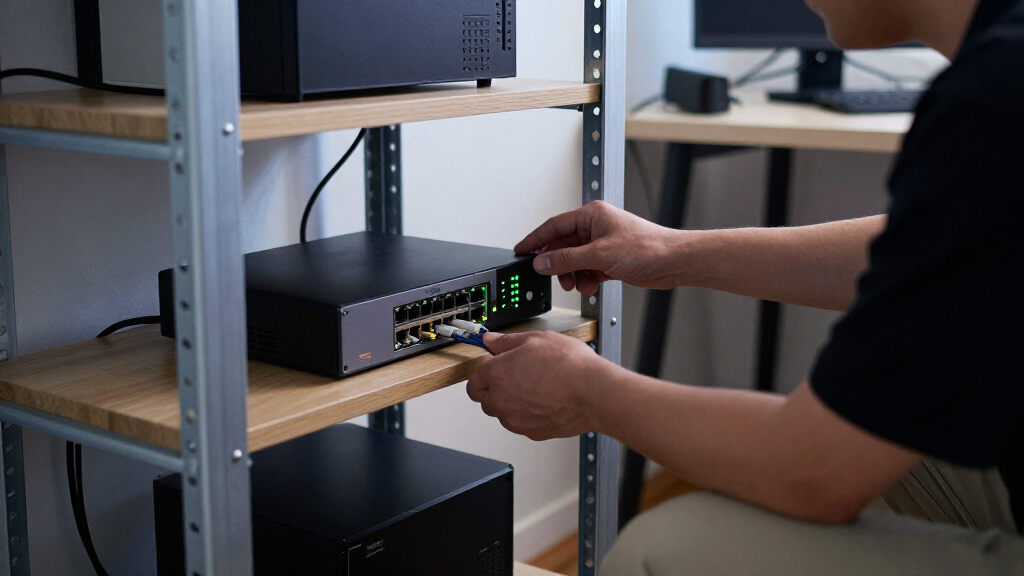
Rackmount gear attaches to an equipment rack. Desktop gear sits on a desk, shelf, or counter. Neither format guarantees speed, features, or reliability; each device’s specifications and design do that.
Centralized setup
Rackmount
A shared, accessible home can keep switches, routers, firewalls, and power distribution organized as an installation grows.
- Useful when several devices need regular service access
- Plan cabinet depth, usable rack units, weight, and mounting style
- Check airflow, fan noise, power load, and accessory costs
Compact setup
Desktop & compact
Small devices can suit homes, shops, and offices without a rack—and can still offer managed features, PoE, or multi-gigabit ports.
- Often simpler to place and less expensive to install
- Several boxes can mean more adapters and exposed cables
- Fanless avoids fan noise; ventilation is still essential
02 / The trade-off in context
Organization has a footprint.
A rack can make cabling and maintenance clearer when multiple devices share one location. It does not manage the network by itself, and the supporting installation adds practical demands.
When a rack helps
Centralize and service
For an office with a firewall, multiple switches, and a network recorder, defined positions and cable routes can make connections easier to trace and devices easier to reach.
What to plan
Space, heat, and cost
Allow for the rack or cabinet, mounting parts, power distribution, cabling, ventilation, and clearance. Fans, dense equipment, and high power draw affect the room and installation budget.
Room check: A small rack in a spare room may tidy a home lab, but fan noise and heat can reduce comfort. A closed cabinet can muffle sound while limiting airflow.
03 / Compare the specifications
Buy for the ports and workload.
Count current connections and likely additions, then compare the features that affect capacity and operation. “Desktop” does not necessarily mean unmanaged, and a rackmount label does not promise a particular feature set.
| Check | What to verify | Why it matters |
|---|---|---|
| Ports & speed | Port count and 1, 2.5, 10GbE, or faster links | Connect endpoints and faster access points without a bottleneck |
| PoE | Supported standard, per-port limits, and total budget | Power access points, cameras, or phones reliably |
| Management | VLANs, link aggregation, monitoring, routing, central control | Match the visibility and control your network requires |
| Cooling & noise | Fan presence, operating noise, and airflow guidance | Keep equipment comfortable to live or work near |
| Power & resilience | Consumption, redundant supplies, failure impact | Understand uptime needs and power distribution |
| Space & total cost | Rack depth or shelf space; hardware, cabling, support | Price the complete installation, not just the device |
04 / Capacity snapshot
Match link speed to the device.
1GbE remains common for many endpoints. Multi-gigabit Ethernet bridges the gap between 1GbE and 10GbE, which can help with faster Wi-Fi access points and broadband. Servers, storage, and aggregation may call for 10GbE or faster.
05 / Four-step selection flow
Make the final choice.
Choose desktop gear when a compact, quiet setup meets capacity and feature needs. Choose rackmount when centralizing several devices solves a real organization or service problem.
Count connections
Include current devices and expected additions.
Set capabilities
Check speed, PoE budget, management, and resilience.
Inspect the location
Measure space; check airflow, noise, power, and access.
Price the whole setup
Add mounting, cabinet, power, cabling, cooling, and support.
From network need to installation plan
01 / Demand
Ports, speed & PoE02 / Capability
Management & resilience03 / Environment
Space, airflow & noise04 / Decision
Desktop or rackmountChoose by installation needs, not by the shape of the box
Rackmount versus desktop network gear comes down to installation format: rackmount devices attach to an equipment rack, while desktop devices sit on a desk, shelf, or counter. Neither format automatically makes a switch or router faster, more capable, or more reliable. The specifications and design of the individual device determine those things.
Imagine a small studio with a router, one switch, and a Wi-Fi access point. A compact managed switch on a ventilated shelf may handle the job neatly. A larger company with several switches, firewalls, and servers may find a rack easier to organize and service. Both setups can work well when their equipment matches the load.
Rackmount gear commonly fits a 19-inch-wide rack, and its height is measured in rack units. 1U equals 1.75 inches vertically; a 2U device uses twice that height. But width is only one measurement. Rack depth, device weight, mounting style, and available airflow can differ, so check the actual dimensions against your cabinet before you commit.
The format also does not guarantee a particular feature set. A desktop switch may offer VLANs and monitoring, while a rackmount model may be an uncomplicated switch. Treat “desktop” and “rackmount” as clues about placement, then compare the capabilities that match your network.
See when a rack makes your network easier to manage
Rackmount equipment is a strong fit when several network devices need a shared home and regular access for maintenance. A rack can keep switches, routers, firewalls, and power distribution in a consistent layout, making it easier to label connections and see which device a cable belongs to. That organization matters most when troubleshooting: if a link fails, you can trace it without shifting a pile of equipment. The rack itself does not manage the network; the devices’ software and your configuration still determine how easy they are to operate.
Picture a small office where the internet connection, firewall, two switches, and a network recorder all sit on one shelf. Their power bricks dangle behind them, and tracing a cable means moving a tangle of cords. A rack gives each device a defined position and can provide places to route and label cables. This can save time as the installation grows, though only if the rack has enough room and the equipment is arranged accessibly. Buying a high-port-count switch may reduce the number of devices, but it can also create a single point whose failure affects more connections.
The trade-off is the supporting setup. You need suitable space, a rack or cabinet, and enough clearance for airflow around the equipment. Fans can add noise, while tightly packed devices can trap heat and make cooling less effective. More equipment can also increase power draw; check the circuit and power distribution rather than assuming the rack solves power needs. The rack, mounting parts, cabling, and any cooling or power accessories add cost before the first device is installed.
For a home lab in a spare room, a small rack may keep equipment tidy, but fan noise and heat can make the room less comfortable during a quiet evening. A closed cabinet may reduce perceived noise while worsening ventilation, so consider where warm air will go and whether you can hear the equipment from nearby rooms. A rack is most helpful when its organization and room to expand solve a real problem and the location can support its noise, heat, and power needs.
- Useful when: several devices need a shared, accessible, organized space.
- Plan for: rack depth, airflow, noise, power capacity, and mounting hardware.
- Example: a growing office centralizing switches, firewall, and server equipment so staff can trace and service connections more easily.
Know why desktop gear can handle more than home basics
Desktop network gear is equipment made for a desk, shelf, or counter, and it can serve homes, shops, and small offices. Compact size does not mean basic features: depending on the model, a small device can support managed networking, VLANs, PoE, or multi-gigabit connections. Check the specifications rather than assuming a desktop device is an unmanaged home switch.
Consider a neighborhood shop with a router, a payment terminal, two access points, and several cameras. A compact switch with enough ports and an appropriate PoE budget might fit on a ventilated back-room shelf. It avoids the cost and space of a rack while giving the owner useful network features. A similar compact setup can work for a home office with a few wired computers and a network printer.
Desktop equipment often costs less to install and takes up less room. Some models can sit on a shelf or attach to a wall. Still, several separate boxes can become messy: power adapters may crowd an outlet, exposed cables can get bumped, and a collection of small devices can be harder to maintain than one organized installation.
Cooling deserves attention even when a device has no fan. A fanless switch avoids fan noise, but it still releases heat and needs ventilation. For example, placing a compact switch in a closed cupboard beside a warm router can limit airflow. Follow the device’s operating guidance and keep vents clear, especially when PoE loads increase power use.
Compare the specifications that decide whether it will work
Ports, speed, PoE, management, cooling, and resilience matter more to network performance than the enclosure format. Compare those capabilities against the devices you already own and the ones you expect to add. A neat installation still disappoints if it lacks enough ports or cannot supply the power your access points need.
For example, a new Wi-Fi access point may have a multi-gigabit Ethernet port, while older computers still use 1GbE. A switch with a mix of port speeds could connect both sensibly. Multi-gigabit Ethernet fills the gap between 1GbE and 10GbE; 1GbE remains common for many endpoints, while faster links can matter for servers, storage, and aggregation.
| What to check | Why it matters | Example question |
|---|---|---|
| Ports and speed | Determines how many devices connect and at what link rate. | Do your access points need 2.5GbE, or is 1GbE enough? |
| PoE standard and budget | Sets which devices can receive power and the total available power. | Can the switch power all cameras and access points together? |
| Management | Provides controls such as VLANs, monitoring, routing, or traffic prioritization. | Do you need to separate guest Wi-Fi from office devices? |
| Cooling and noise | Affects placement, comfort, and operation under load. | Will a fan be distracting in a quiet room? |
| Power and resilience | Shapes energy use and the effect of device or power failure. | Does this network need redundant power? |
| Space and total cost | Includes the supporting installation, not just the device price. | Have you counted the cabinet, brackets, and cabling? |
PoE needs particular care. Check both the per-port limit and the switch’s total power budget, then add up what the connected cameras, phones, or access points require. Allowing headroom helps avoid choosing a switch that has enough ports but cannot power every device at once.
Estimate capacity before you buy more ports or speed
How much network capacity you need depends on the devices that connect, the traffic they create, and the growth you expect. Begin with a count of wired endpoints, then note each device’s connection speed and power needs. A household with four computers, a printer, and two access points has a different job from a studio moving large video files to a shared server.
Use this simple planning process before choosing a format:
- Count current connections. Include the router uplink, access points, cameras, servers, printers, phones, and spare ports you want.
- Record speed and power needs. Note whether each link needs 1GbE, 2.5GbE, 10GbE, or PoE, and check the device’s power requirement.
- Identify management needs. Decide whether you need VLANs, traffic monitoring, link aggregation, routing, or centralized control.
- Allow room for change. A small amount of spare capacity can avoid replacing equipment when you add a camera or access point.
- Match the installation space. Compare shelf area or rack units, power access, cable paths, and ventilation.
For instance, a home office may count six wired connections today and want two spare ports for a future access point and backup drive. That count can help you compare a compact switch with a rackmount model using actual needs rather than the device’s appearance. Faster links are useful when your workload benefits from them; they do not improve every internet connection by themselves.
Cloud or centralized management can simplify overseeing multiple devices, but check whether it requires an account, subscription, or internet access for particular features. Your plan to manage equipment should include who will update it and how you will reach its controls during an outage. A simple network with one administrator may not need the same setup as a multi-site business.
Add up the real cost of installing each format
Total installation cost includes more than the price on the equipment label. A desktop setup may need only a switch, power adapter, and patch cables, while a rackmount setup can add a rack or cabinet, mounting hardware, power distribution, and longer or better-organized cabling. Support plans or cloud-management subscriptions may also affect the long-term cost.
Imagine comparing a compact switch for a small office with a rackmount switch that has more ports. If the compact model covers today’s devices and leaves a few spare ports, the rackmount option may add expense without solving a current problem. On the other hand, if you already need several network devices, a rack may reduce the clutter and time spent tracing connections as the setup expands.
Energy use matters too. Higher-speed ports and substantial PoE budgets can increase power draw, and the heat needs a path out of the room or cabinet. A quiet fanless device may suit an office, but fanless does not mean it can be enclosed without ventilation. Compare expected operating conditions, not just the noise rating or dimensions.
Prices and product capabilities change, so compare current specifications and costs at the time you buy. Treat broad trends—such as more multi-gigabit access ports and compact devices with more features—as reasons to inspect options, not guarantees about a specific model. The right choice depends on your workload, environment, and the full supporting setup.
A useful rule: choose the least complicated installation that meets your port, speed, PoE, management, and growth needs.
Use a quick checklist to make the final choice
Choose desktop gear when a compact, quiet setup meets your capacity and feature needs; choose rackmount gear when centralizing several devices or planning for expansion justifies a dedicated space. This rule works well for many home and small-business networks, but a compact device can still be the better fit for a demanding job if its specifications match.
Suppose you run a small design office with a few computers, a NAS, and two access points. If a compact managed switch offers the required port speeds and PoE budget, it can fit on a shelf without a rack. If you later add a firewall, recorder, server, and multiple switches, a rack may give those devices a more orderly home.
- Pick desktop for limited device counts, shelf space, lower setup cost, or noise-sensitive rooms.
- Pick rackmount when several devices need shared organization, more ports, or room to expand.
- Check either format for actual speeds, PoE standards and budget, management features, cooling, and power.
- Measure before ordering rack depth and usable units, or shelf space and adapter placement.
Before you buy, write down your endpoint count, the fastest links you need, any devices that draw PoE, and the management controls you will use. Then compare the full setup cost and confirm ventilation. That short list keeps the decision grounded in your network rather than in assumptions about what a particular box shape can do.
Frequently Asked Questions
Is rackmount network equipment faster than desktop equipment?
No, not by format alone. Speed depends on the ports, switching capacity, processor, software, and workload. A compact managed switch can have faster ports than a rackmount model, so compare specifications directly.
Do I need a rack to use rackmount gear?
Rackmount devices are designed for rack installation, but some can sit on a shelf or use optional brackets. Check the manufacturer’s mounting and ventilation guidance first, and make sure the shelf can support the device’s weight.
Is desktop gear only for home networks?
No. Compact equipment can suit shops and small offices when it has enough ports, speed, PoE capacity, and management features. A small office with a few access points and cameras may be well served by a desktop switch.
Can I use rackmount gear at home?
Yes, if you have space, suitable power and cooling, and can live with the noise. A small rack or cabinet can organize a home lab, but check airflow and sound before placing it near a bedroom or living area.
Does a fanless switch need ventilation?
Yes. Fanless designs remove fan noise, but the device still produces heat, especially under heavier traffic or PoE loads. Keep vents clear and follow its operating guidance rather than sealing it inside a cupboard.
How do I know how much PoE power I need?
Add the power requirements of the cameras, access points, phones, or other devices you will connect, then leave some headroom. Check the switch’s total PoE budget and its per-port limits; both must suit the connected devices.
Conclusion
Start with a count of your devices and the features they need, then choose the format that fits your space and plan to manage it. Desktop gear suits a compact installation; rackmount gear helps organize a larger one. Let the specifications make the decision, and leave enough breathing room—around the equipment and in your plans for what comes next.
Fall Picks
fall essentials
As an affiliate, we earn on qualifying purchases.