
TL;DR

Get privacy and security gear delivered free — and shop member deals
- Fast, free delivery on millions of items
- Access to Prime Big Deal Days deals on October 6–7
- Prime Video, Amazon Music and more included
Password managers, passkeys and hardware security keys all help protect accounts, but they work in different ways. A password manager stores unique passwords in an encrypted vault; a passkey replaces passwords with a per-site cryptographic credential that resists phishing; a hardware key is a physical device that proves possession at sign-in. For most people, the practical stack is a password manager plus passkeys, with hardware keys for email, banking and administrator accounts.
The average person has around 100 online accounts, and almost nobody has 100 unique passwords memorized. So we reuse. A pet’s name plus a birthday, recycled across email, banking and a dozen shopping sites — and when one of those sites gets breached, that password goes up for sale like a concert ticket on a resale site.
The good news: you no longer have to rely on memory or luck. You have three solid tools available right now — password managers, passkeys and hardware security keys. The confusion is that they overlap. They all help protect accounts, but they work in different ways, and a clear article should explain what each one actually does.
That’s what you’ll get here: what each tool is, how it works under the hood (briefly, promise), where each one shines, and a practical setup you can finish this weekend. No fear-mongering, no product pitches — just what works.
Password managers, passkeys and hardware keys overlap but don’t compete — layer them: manager as the base, passkeys where offered, hardware keys for critical a…
Passkeys are phishing-resistant by design: a credential created for one domain will not authenticate to an impostor site, and your fingerprint or face data nev…
Always register a backup: a spare hardware key or stored recovery codes, set up before you depend on the primary method.
Secure your primary email account first — it is the recovery path into everything else you own.
Prefer authenticator apps or hardware keys over SMS codes; SIM-swap attacks make texted codes the weakest second factor.
Password Managers, Passkeys and Hardware Keys Explained
Three tools, one goal: accounts that don’t fall to a single leaked password. Here is what each one actually does, how it works under the hood, where each shines — and a practical setup you can finish this weekend.
What Each Tool Actually Does
They all help protect accounts, but they work in different ways — and each covers a gap the others leave. A pet’s name plus a birthday, recycled across email and banking, is the habit that turns one breach into ten. These are the three tools that break the habit.
Password Manager
Stores all your passwords in one encrypted vault, fills them in automatically, and generates long random strings like k9#Vq2!xLm that no human would invent. Every account gets a different password — so when a retailer leaks 40 million of them, attackers trying your email elsewhere come up empty.
Passkey
A cryptographic credential created for one specific site. The service stores the public key; the private key stays on your device. You approve with fingerprint, face or PIN — the site receives a mathematical proof, never a shared secret you could type into the wrong page.
Hardware Security Key
A small physical device — USB, NFC or Bluetooth, often key-fob sized — that proves you possess something at sign-in. Tap it, it flashes, you’re in. It works as a second factor or holds passkeys directly. An attacker abroad can phish your password all day; they cannot tap a key in your desk drawer.
The Four Failure Modes of Passwords
Passwords can be guessed, reused, stolen in breaches, or typed into a fake page after a convincing email. Passkeys sidestep all four at once — because a passkey created for your real bank simply will not authenticate to yourbank-secure-login.com.
“A passkey created for one website will not authenticate to an impostor site on a different domain — the credential is cryptographically bound to the real domain. And your fingerprint or face data never leaves your device.”
Key Insight · Phishing Resistance by DesignA Weekend Setup, In Order
The practical stack for most people: a password manager as the base, passkeys where offered, hardware keys for email, banking and administrator accounts.
Secure Email First
Your primary email is the recovery path into everything else you own. Lock it down before anything else.
Deploy a Manager
Strong passphrase, MFA on the vault, unique password for every account, printed recovery kit in a fireproof box.
Turn On Passkeys
Where services support them — synced passkeys for everyday use, device-bound passkeys on hardware keys for high-security accounts.
Add Hardware Keys
Register two keys for email, banking and admin accounts. Always set up recovery codes before you depend on the primary method.
How the Three Tools Compare
They overlap but don’t compete. Layer them: manager as the base, passkeys where offered, hardware keys for critical accounts.
| Feature | Password Manager | Passkey | Hardware Key |
|---|---|---|---|
| Replaces / protects | Manages unique passwords | Replaces the password entirely | Adds possession proof; can hold passkeys |
| Phishing resistance | ~ Indirect (won’t autofill on fake domains) | ✓ Strong, by design | ✓ Strong, as second factor or passkey host |
| Needed at sign-in | Master password | Fingerprint, face or PIN on your device | The physical key, tapped or plugged in |
| Main weakness | ✗ Master account is a single point of failure | ✗ Support varies; syncing account matters | ✗ Loss or damage can lock you out |
| Backup story | Recovery kit, MFA on vault | Synced passkeys via platform account | Second registered key, recovery codes |
| Best for | Everyone — the base layer | Everyday accounts that support it | Email, banking, admin accounts |
Layer, don’t choose. Password managers, passkeys and hardware keys overlap but don’t compete — manager as the base, passkeys where offered, hardware keys for critical accounts.
Passkeys resist phishing by design. A credential created for one domain will not authenticate to an impostor site — and biometric data never leaves your device.
Always register a backup. A spare hardware key or stored recovery codes, set up before you depend on the primary method.
Secure email first. It is the recovery path into everything else you own. Prefer authenticator apps or hardware keys over SMS — SIM-swap attacks make texted codes the weakest second factor.
What a Password Manager Actually Does for You
A password manager is an app that stores all your passwords in one encrypted vault and fills them in for you automatically. You unlock the vault with a single master password — the only password you still need to remember — and the manager handles everything else. It can also generate long, random passwords like k9#Vq2!xLm that no human would bother inventing.
The real value isn’t convenience, though that’s nice. It’s that every account gets a different password. When a retailer gets breached and 40 million passwords leak, the attackers who try your email on other sites come up empty. Reuse is the habit that turns one breach into ten.
Here’s a scenario you might recognize: your sister reuses the same password everywhere. A recipe site she used once in 2019 gets hacked. Two weeks later, someone is in her email — because it had the same password. A password manager makes that story impossible. The recipe password leaks; nothing else does.
One caveat, stated plainly: your master password now guards everything. Make it long — a passphrase of four or five random words beats a short gnarly string — and turn on multifactor authentication for the vault itself. And because the master account is a single point of failure, print your recovery kit and store it somewhere physical and safe, like a fireproof box, not a note in your phone.
Most modern password managers can also store passkeys, which brings us to the next tool.
As an affiliate, we earn on qualifying purchases.
Passkeys: The Login That Can’t Be Phished
A passkey is a cryptographic credential created for one specific website or app. Under the hood it’s a public–private key pair: the service stores the public key, and the private key stays on your device or in a synced credential manager. When you sign in, you approve with your fingerprint, face scan or device PIN — and the site receives a mathematical proof, never a shared secret you could type into the wrong page.
Two things make this a big deal. First, the biometric never leaves your device. Your fingerprint unlocks the passkey locally; the website gets a cryptographic signature, not your face data. Second, phishing stops working. A passkey created for your real bank simply will not authenticate to yourbank-secure-login.com, because the credential is bound to the genuine domain. Attackers can clone a login page pixel-for-pixel and it doesn’t matter.
Contrast that with passwords: they can be guessed, reused, stolen in breaches, or typed into a fake page after a convincing email. Passkeys sidestep all four failure modes at once.
The standards behind this — WebAuthn, developed by the FIDO Alliance and the World Wide Web Consortium — are now supported by major operating systems, browsers and services. Google, Apple, Microsoft and many banks have rolled out passkey sign-in. The catch: support and the recovery experience still vary by service. Not every site offers them yet, and account recovery flows differ widely. That’s why passkeys complement a password manager rather than replacing it — many accounts still need passwords for years to come.
hardware security keys for online banking
As an affiliate, we earn on qualifying purchases.
As an affiliate, we earn on qualifying purchases.
Hardware Security Keys: The Physical Layer of Protection
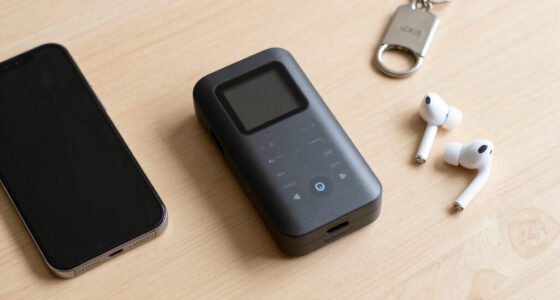
A hardware security key is a small physical device — USB, NFC or Bluetooth, often the size of a car key fob — that proves you physically possess something during sign-in. You tap it, it flashes, you’re in. It can serve as a second factor on top of a password, or store passkeys directly, depending on the key and the service.
Think of it like the deadbolt on your front door: the password is the lock on the knob, but the deadbolt only turns when someone is physically standing there with the key. An attacker in another country can phish your password all day; they cannot tap a key that’s sitting in your desk drawer.
Hardware keys earned their reputation in high-stakes environments. Google reported in 2018 that after rolling out security keys to its roughly 85,000 employees, it saw essentially zero successful phishing attacks on staff accounts. That’s the level of resistance we’re talking about — and why journalists, activists, executives and system administrators lean on them.
The tradeoff is the obvious one: losing the key can mean losing access. If your only key falls into a river, recovery depends on the provider’s process, which for some services is slow or genuinely impossible. The rule every hardware key user follows: register two keys. Keep one on your keyring, one in a drawer or safe deposit box. Cost is modest — quality keys typically run $25–$60, so a pair costs less than dinner for two.
Is it worth it for everyone? No. If you’re not a targeted individual, a password manager plus passkeys built into your phone covers most of the ground. But for your primary email — the account that resets all your other passwords — a hardware key is a reasonable upgrade.
As an affiliate, we earn on qualifying purchases.
How the Three Tools Compare Side by Side
Password managers, passkeys and hardware keys all help protect accounts, but they work in different ways, and each covers a gap the others leave. This table shows where each fits:
| Feature | Password Manager | Passkey | Hardware Key |
|---|---|---|---|
| What it replaces or protects | Manages unique passwords | Replaces the password entirely | Adds possession proof; can hold passkeys |
| Phishing resistance | Indirect (won’t autofill on fake domains) | Strong, by design | Strong, when used as second factor or passkey host |
| What you need at sign-in | Master password | Fingerprint, face or PIN on your device | The physical key, tapped or plugged in |
| Main weakness | Master account is a single point of failure | Support varies by service; syncing account matters | Loss or damage can lock you out |
| Backup story | Recovery kit, MFA on vault | Synced passkeys move to new devices | Register a spare key upfront |
| Best for | Everyone, as the foundation | Any account that supports it | Email, banking, admin and high-risk users |
Notice the pattern: none of them is a complete answer alone. These tools are not mutually exclusive — a password manager can store passwords and, depending on the product, passkeys. A hardware key can add phishing-resistant verification and may also hold passkeys. Layered, they cover each other’s weaknesses.
As an affiliate, we earn on qualifying purchases.
Synced vs. Device-Bound Passkeys — and Why It Matters
Not all passkeys live in the same place, and where yours live determines what happens when your phone dies. Synced passkeys travel through your platform account or password manager, so they show up on every device you sign into. Device-bound passkeys — like credentials held on some hardware keys — never leave that one device.
Synced is the everyday-friendly option. Drop your phone in a lake, buy a replacement, sign into your Apple or Google account, and your passkeys reappear like photos from a backup. The catch: your syncing account is now the castle wall. If someone takes over your platform account, they potentially take over every passkey inside it — so that account deserves your strongest protection, including MFA and a good recovery setup.
Device-bound is the opposite trade. A passkey locked to a hardware key can’t be swept up by compromising a cloud account; it stays tied to plastic in your pocket. That suits high-security accounts and organizations with strict controls — but it brings back the lost-key problem. No spare key, no access.
The practical read: use synced passkeys for convenience on everyday accounts, and consider a device-bound credential on a hardware key for the two or three accounts where the damage of a takeover would be worst. Your email and your bank top that list.
Your Weekend Setup: A Practical Order of Operations
Here’s the setup sequence we recommend at vultrade.com, ordered so each step strengthens the one before it:
- Secure your primary email first. It’s the recovery path for everything else. Give it a unique password, MFA, and — if it supports one — a passkey or hardware key.
- Choose a reputable password manager and set a long master passphrase. Turn on MFA for the vault and print the recovery kit.
- Change critical passwords — banking, email, cloud storage, phone carrier — to generated ones. Don’t try to fix all 100 accounts in one night; prioritize.
- Turn on passkeys wherever services offer them. Each passkey you create retires one phishable password.
- Register a spare hardware key (or at minimum, download and safely store recovery codes) for your most important accounts. Do this before you rely on the primary key.
- Replace SMS codes with an authenticator app or hardware key where the service allows. Texted codes are the weakest second factor — vulnerable to SIM-swap attacks where an attacker convinces your carrier to move your number to their phone.
Then maintain: keep devices updated, review what’s synced where once or twice a year, and treat your recovery routes as seriously as your front door. A strong sign-in method can be undermined completely by an easily compromised recovery option — attackers know to attack the side door when the front is armored.
Frequently Asked Questions
Are passkeys safer than passwords?
Yes, for the threats that matter most. Passkeys use a unique cryptographic credential per service, which eliminates password reuse and resists phishing — the two biggest causes of account takeover. Overall security still depends on your device security, how credentials are synced, and the account’s recovery process.
Are passkeys the same as biometrics?
No. A fingerprint or face scan only unlocks or authorizes the passkey locally on your device. The website receives a cryptographic proof, never the biometric data itself. Your face never travels anywhere.
Do passkeys replace password managers?
Not yet. Passkeys replace passwords only on services that support them, and many sites still require passwords. Password managers remain useful for those accounts — and many now manage passkeys too, so one tool covers both.
What happens if I lose my phone or hardware key?
It depends on where the credential lives. Synced passkeys reappear when you sign into your platform account on a new device. A passkey or second factor bound to a lost hardware key requires a spare registered key or another recovery method. Check each service’s recovery process and register backups before anything goes missing — without a backup, some providers cannot restore access at all.
What’s the difference between two-factor authentication and a passkey?
Traditional two-factor authentication adds a second check on top of a password — a code, an app prompt, or a security key tap. A passkey replaces the password entirely and combines possession of the credential with local user verification in one step. Some services also let you use a hardware key as either a second factor or a passkey.
Should I buy a hardware security key?
It’s worthwhile if you’re at elevated risk — journalists, activists, administrators, or anyone guarding especially sensitive accounts — or for your primary email and banking. Most people can start with a password manager and the passkeys built into their existing devices, then add a key later. If you buy one, buy two, and register both.
Conclusion
If you remember one thing, make it this: your email account is the master key to your digital life. Protect it with everything you’ve got — a unique password, a passkey or hardware key, and a locked-down recovery process — and you’ve hardened every account it can reset. Everything else is refinement.
You don’t need all three tools tonight. Start with a password manager this week, add passkeys as sites offer them, and put a hardware key on your email and banking when you’re ready. Security isn’t a vault door you install once; it’s a set of habits, built one weekend at a time.
Fall Picks
fall essentials
As an affiliate, we earn on qualifying purchases.