
TL;DR

Get privacy and security gear delivered free — and shop member deals
- Fast, free delivery on millions of items
- Access to Prime Big Deal Days deals on October 6–7
- Prime Video, Amazon Music and more included
Administrator accounts can install software, disable protections, access sensitive information, and create other accounts — so a single compromised admin can damage an entire organization, not just one device. Protect them by separating daily-use accounts from admin work, applying least privilege, enabling phishing-resistant MFA, and monitoring privileged activity.
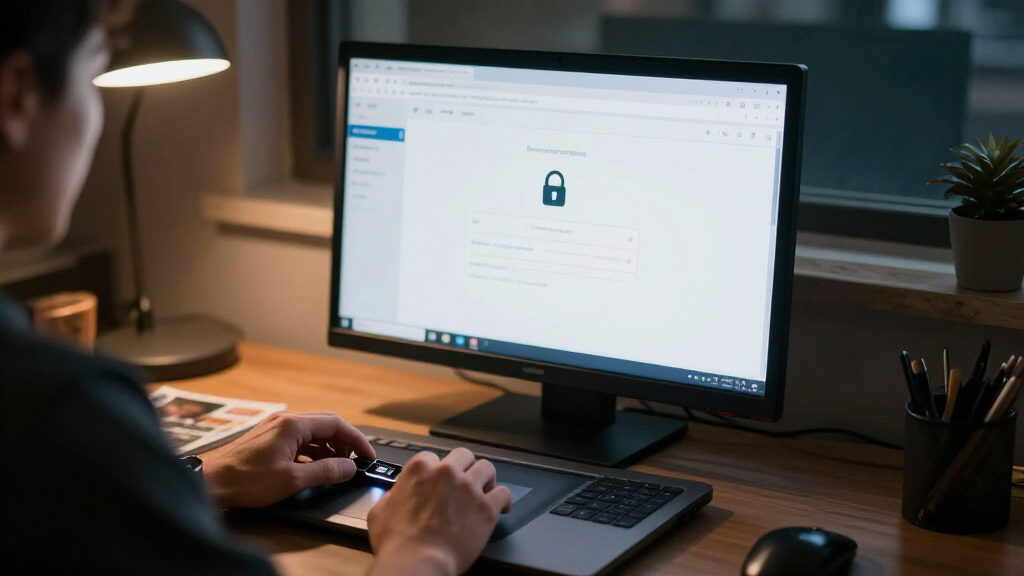
Imagine one key that opens every door in a building — the server room, the safe, the front office, the filing cabinets. Now imagine someone carrying that key everywhere: to lunch, to the gym, through a crowded train station. That’s essentially what you’re doing when you use an administrator account for everyday email and browsing.
Administrator accounts can change systems, access sensitive information, create other accounts, and alter security settings. If one is misused or compromised, the damage spreads well beyond a single user or device. A phished ordinary employee is a headache. A phished admin is a company-wide event.
In this guide, you’ll learn why admin accounts carry outsized risk, what modern security practice recommends, and seven concrete steps you can take — whether you manage IT for a company or you’re simply the “tech person” in a small business.
Administrator is a permission level, not a job title — inventory privileged access per system (including cloud roles, databases, and service accounts), not per…
Use a standard account for email, browsing, and daily tasks; elevate to admin only when a task requires it. This single habit shrinks the blast radius of phish…
Enable MFA on every admin account and prefer phishing-resistant methods (hardware security keys or passkeys); lock down recovery methods with equal care.
Keep the admin headcount small, avoid shared admin accounts, and actually review privileged logs — an unread log is a diary, not a defense.
Maintain and regularly test break-glass emergency accounts, and extend the same discipline to non-human credentials like scripts and automation.
Why Admin Accounts Need Special Treatment
Admin accounts can install software, disable protections, access sensitive data, and create other accounts — so a single compromised admin can damage an entire organization, not just one device. A phished employee is a headache. A phished admin is a company-wide event.
Imagine one key that opens every door in a building — and you carry it to lunch, to the gym, through a crowded train station.
That’s daily browsing with an admin accountIt’s a Permission Level, Not a Job Title
An administrator account is an account with permission to control a system — not a person, not a role on an org chart. The same person can be admin in one system and an ordinary user in another. Privileged access includes cloud roles, directory administration, database privileges, security consoles, and the WordPress dashboard login alike.
Install & Modify Software
Malware running with admin privileges can install payloads and alter system files an ordinary account could never touch.
Disable Protections
Security tools, endpoint agents, and logging can be switched off — the attacker silences the alarm before opening the vault.
Reach Sensitive Data
Admin rights cross boundaries: payroll records, customer databases, email directories, and backups become reachable.
Create Other Accounts
A compromised admin can mint new backdoor accounts and change permissions — persistence that survives a password reset.
Same Phishing Email, Dramatically Different Outcome
An IT manager clicks a fake invoice link. What happens next depends entirely on which account was signed in.
Clicked from an Admin Account
- Attacker creates new accounts
- Disables security tools network-wide
- Accesses sensitive data across systems
- Changes security settings & permissions
Clicked from a Standard Account
- Compromised mailbox, not infrastructure
- Protections stay enabled
- No ability to create accounts
- Incident contained to one user
The fix is simple and free: a standard account for email and browsing, elevating privileges only when a task requires it. On Windows, a second local account plus “Run as administrator.” On macOS, a standard account with the admin password entered only when a change requires it. Small friction, large payoff.
Not All MFA Resists Phishing Equally
MFA makes account takeover much harder — but admin accounts deserve the strongest options available. A fake website can trick you into handing over a code; it can’t trick a hardware security key bound to the real domain.
MFA doesn’t make an account invulnerable. Attackers increasingly steal session tokens precisely because MFA works so well against password theft. Compromised devices and overly broad permissions remain real concerns.
Your account is only as strong as its recovery path. A compromised recovery email or unprotected phone number lets an attacker reset credentials — bypassing the MFA in front of them entirely.
Admin for Forty Minutes, Not Twenty-Four Hours
Least privilege means each person gets only the permissions their role requires, for only as long as needed — a key to one room, not the master key. Two modern patterns make it workable:
Request
Admin requests elevation for a specific task with justification attached.
Approve
Approval chain or extra verification validates the request.
Activate
Scoped role activates temporarily — full admin for minutes, not months.
Audit
Detailed logs record what was done; privileges auto-expire.
Just-in-Time Access
Privileged permissions are granted only when a task requires them and removed afterward — often with an approval step. Instead of being an admin 24/7, you become one for forty minutes.
Just-Enough Administration
Access is scoped narrowly: someone can manage backups without being able to delete users or read payroll data. Cloud platforms increasingly support these workflows natively.
Five Rules for Treating Admins Differently
Concrete steps whether you manage IT for a company or you’re the “tech person” in a small business.
Inventory Privileged Access Per System
Admin is a permission level, not a job title. Track privileged access per system — including cloud roles, databases, and service accounts — not per person.
Separate Daily & Admin Accounts
Standard account for email, browsing, and daily tasks; elevate only when a task requires it. This single habit shrinks the blast radius of phishing.
Phishing-Resistant MFA Everywhere
Enable MFA on every admin account, prefer hardware keys or passkeys, and lock down recovery methods with equal care.
Small Headcount, Real Log Review
Keep the admin count small, avoid shared admin accounts, and actually review privileged logs — an unread log is a diary, not a defense.
Break-Glass Plans & Non-Human Credentials
Maintain and regularly test break-glass emergency accounts for outages and identity-provider failures — and extend the same discipline to scripts, automation, and service accounts. Prefer managed identities or short-lived credentials, restrict permissions, and rotate secrets. An unprotected script credential is a backdoor with no MFA.
What an Admin Account Actually Is (It’s Not a Job Title)
An administrator account is an account with permission to control a system — not a person, and not a role on an org chart. The same person can be an administrator in one system and an ordinary user in another. Your colleague might hold full admin rights over the company’s email directory yet have zero privileges on the finance database.
This distinction matters because people often misjudge their own exposure. “I’m not an admin, I just handle the website,” someone might say — while quietly holding credentials that can modify DNS, install plugins, and access every customer record the site touches. Those are privileged credentials, full stop.
Privileged access also covers far more than the local admin rights on a laptop. It includes cloud roles, directory administration, database privileges, security consoles, and the ability to manage other users. The WordPress dashboard login, the AWS root account, the domain controller login, the password-reset mailbox — all of these are admin accounts in the practical sense.
Here’s the problem in one sentence: admin rights magnify risk. Malware or an attacker operating with administrator privileges may be able to install software, disable protections, change permissions, or reach data that an ordinary account could never touch. Same attacker, same phishing email — dramatically different blast radius.
As an affiliate, we earn on qualifying purchases.
Why You Shouldn’t Use Your Admin Account for Everything
Using an administrator account for daily work is dangerous because routine activity — opening email, browsing websites, downloading files — is exactly where credentials meet risk most often. A separate standard account for everyday tasks dramatically shrinks the consequences when something goes wrong.
Consider a realistic scenario. An IT manager checks email from her admin account and clicks a link in what looks like an invoice. The fake page captures her session. Because she was signed in with admin rights, the attacker can now create new accounts, disable security tools, and access sensitive information across the network. If she’d been using a standard account, the same click would likely have cost far less — a compromised mailbox instead of the keys to the kingdom.
The fix is simple and free: use a standard account for email, browsing, and everyday tasks, and elevate privileges only when needed. On Windows, that’s a second local account plus the “Run as administrator” prompt. On macOS, it’s a standard account with the admin password entered only when a change requires it. Small friction, large payoff.
If a website, attachment, or application turns out to be malicious, a separate standard account means the attacker gets your mailbox — not your whole infrastructure.
This habit also limits phishing damage on the occasions when you do need admin rights, because the powerful credentials aren’t sitting in an active browser session all day.
privileged access management software
As an affiliate, we earn on qualifying purchases.
As an affiliate, we earn on qualifying purchases.
Least Privilege: Give the Right Access, Not All the Access
Least privilege means each person gets only the permissions their role requires, for only as long as they need them. It’s the security equivalent of giving a contractor a key to one room instead of the master key to the building — and taking it back when the job ends.
In practice, least privilege fails in two directions. Too generous, and a compromise in one area spreads everywhere — the marketing contractor who still has database admin rights eight months after the project ended. Too strict, and people work around you: shared passwords in a spreadsheet, “temporary” access that never expires, or admin rights granted just to make a ticket go away. The aim is to grant the right access safely and promptly, not to make legitimate administration impossible.
Two modern patterns help strike that balance:
- Just-in-time access: privileged permissions are granted only when a task requires them and removed afterward, often with an approval step or extra verification. Instead of being an admin 24/7, you become one for forty minutes.
- Just-enough administration: access is scoped narrowly — someone can manage backups, for example, without being able to delete users or read payroll data.
Cloud platforms increasingly support these workflows natively: temporary role activation, approval chains, and detailed audit logs. And review access when responsibilities change. When someone changes teams or leaves, stale privileges are among the most common quiet failures in access management.
As an affiliate, we earn on qualifying purchases.
How to Protect Admin Sign-Ins: MFA, Passkeys, and Recovery
Protecting privileged sign-ins starts with multifactor authentication, strong unique credentials, and well-protected recovery methods. MFA makes account takeover much harder — but not all methods resist phishing equally, and admin accounts deserve the strongest options available.
Here’s the hierarchy worth knowing. SMS codes are better than nothing, but they can be intercepted through SIM-swap attacks. App-based codes are stronger. Phishing-resistant methods — hardware security keys or passkeys, where supported — are the strongest widely available option, because a fake website can’t trick you into handing them over the way it can with a code.
Two cautions keep this honest. First, MFA doesn’t make an account invulnerable: phishing, stolen session tokens, compromised devices, and overly broad permissions remain real concerns. Attackers have increasingly moved to stealing session tokens precisely because MFA works well against password theft. Second, your account is only as strong as its recovery path. If an attacker can reset your credentials through a compromised recovery email or an unprotected phone number, the MFA in front of the login barely matters.
- Enable MFA on every admin account — ideally phishing-resistant (security keys or passkeys).
- Give each admin account a strong, unique password stored in a password manager.
- Lock down recovery methods: dedicated recovery contacts, verified phone numbers, no shared inboxes.
- Sign in to admin work from trusted, updated devices — not a shared family laptop.
- Re-test the whole setup quarterly, including recovery.
break-glass emergency admin accounts
As an affiliate, we earn on qualifying purchases.
As an affiliate, we earn on qualifying purchases.
Fewer Admins, Better Logs: Why Monitoring Beats Hope
Keeping the number of administrator accounts small, reviewing access regularly, and logging privileged actions catches problems that prevention misses. Logging is most useful when someone actually reviews it, knows what normal looks like, and has a plan for suspicious events.
There’s a pattern here worth noticing: the controls that sound boring — access reviews, audit logs, alerting — are the ones that determine whether a breach lasts forty minutes or forty days. A log nobody reads is a diary, not a defense.
Start with headcount. Ask: who can administer each important system, and does each person still need that level of access? Avoid shared admin accounts wherever individual accounts are possible — shared credentials destroy accountability, because when everyone is logged in as “admin,” no one is. If shared emergency credentials are truly unavoidable, they need strict controls, checked-out access, and monitoring.
Then watch the right signals: unusual sign-in times, sign-ins from unexpected locations, new admin accounts you didn’t create, changes to security settings, and failed recovery attempts. Most cloud services can send alerts for these — but someone has to be on the receiving end.
Don’t forget non-human accounts. Scripts, applications, service accounts, and automation often carry powerful, long-lived credentials that no one rotates because “the integration might break.” Prefer managed identities or short-lived credentials where your platform offers them, restrict what these accounts can do, and rotate or revoke their secrets when they’re no longer needed. An automation credential with domain-wide rights and a two-year-old password is an admin account in everything but name.
Break-Glass Accounts: Planning for the Day Everything Fails
A break-glass account is a tightly controlled emergency account used when normal access or identity systems are unavailable — for example, when your identity provider has an outage and no one can sign in to fix it. You hope to never use it, but on the worst day of your year, it’s the only door still open.
The name comes from hospital fire alarms: the glass you break only in an emergency. And like that glass panel, the account itself needs protection from accidental or malicious use.
What good break-glass practice looks like:
- Separate credentials — not tied to the normal identity system, stored securely (a physical safe or sealed envelope, depending on your scale).
- Monitoring by default — any use of the account triggers an alert, because legitimate use should be rare and expected.
- Regular testing — verify the account still works before you need it, ideally on a schedule. An expired break-glass password discovered mid-outage is a very bad afternoon.
- Two accounts, not one — a single emergency account is a single point of failure.
This connects back to the recovery point from earlier: your admin protections are only as strong as your worst recovery path. Attackers know this, and targeting recovery and emergency access is a known technique. Test yours before someone else does.
Do Small Businesses Need All This? (Yes — Scaled Down)
Small businesses need the same core protections at a smaller scale, because a compromised admin account can still expose customer data, disrupt operations, or lock the owner out entirely. Attackers don’t check your headcount before exploiting a stolen credential — a five-person shop and a five-hundred-person firm both run on email, a website, and a bank account.
In fact, small businesses are often more exposed, because one person tends to hold every admin role: email, domain, website, accounting, backups. That concentration is convenient and fragile. If that single account is compromised, there’s no separation left to slow the attacker down.
Here’s the realistic starting order:
| Step | What It Involves | Time Investment |
|---|---|---|
| 1. Separate accounts | Create a standard daily account; reserve admin for changes | ~30 minutes |
| 2. Enable MFA | Phishing-resistant where possible, app-based at minimum | ~15 minutes |
| 3. Trim admin rights | Inventory who has admin access and remove what’s unused | 1–2 hours |
| 4. Backups | Test that backups work and are separate from admin credentials | Ongoing |
Notice what’s missing: expensive tools, dedicated staff, or a security certification. The fundamentals — separate daily-use accounts, MFA, limited admin access, and tested backups — cost almost nothing and address the majority of real-world risk.
Frequently Asked Questions
Why can’t I just use my administrator account for everything?
Because routine activity — email, browsing, opening attachments — is where credentials meet risk most often. A separate standard account means that when a website, attachment, or application is malicious, the attacker gets limited access instead of the ability to install software, disable protections, and access sensitive information across your systems.
Does multifactor authentication make an admin account safe?
It makes account takeover much harder, especially with phishing-resistant methods like security keys or passkeys. But MFA isn’t invulnerability: phishing, stolen session tokens, compromised devices, and overly broad permissions remain concerns. Combine MFA with least privilege, trusted devices, monitoring, and protected recovery methods.
How many administrator accounts should an organization have?
There’s no universal number. Keep the count as small as practical while maintaining coverage, separation of duties, and a tested recovery path. Avoid shared admin accounts wherever individual accounts are possible — shared credentials destroy accountability and make auditing nearly impossible.
What is just-in-time access?
It’s temporary privileged access granted only when a task requires it and removed afterward, often with an approval step or additional verification. Instead of holding admin rights permanently, you activate them for the duration of a specific change — which shrinks the window in which a compromised account can do damage.
What is a break-glass account?
It’s a tightly controlled emergency account used when normal access or identity systems are unavailable — for instance, during an identity-provider outage. Its credentials should be stored securely, its use should trigger alerts, and the recovery process should be tested regularly so it works when you actually need it.
What should I do first to protect privileged accounts?
Identify the accounts that can change important systems or data — including cloud roles, service accounts, and dashboard logins. Then remove unnecessary privileges, separate routine and admin use into different accounts, enable strong MFA, and review how privileged activity is logged and monitored.
Conclusion
If you do one thing after reading this: find the accounts that can change your important systems or data — including the ones hiding in scripts and dashboards — and give them the special treatment their power deserves. Separate them from daily use, guard their sign-ins, and watch what they do. Powerful credentials deserve powerful habits.
Treat the master key like a master key. Don’t carry it to lunch.
Evergreen bestsellers Picks
bestsellers
As an affiliate, we earn on qualifying purchases.