
TL;DR

Get privacy and security gear delivered free — and shop member deals
- Fast, free delivery on millions of items
- Access to Prime Big Deal Days deals on October 6–7
- Prime Video, Amazon Music and more included
Firmware is the low-level software that starts and controls hardware, sometimes before your operating system loads. A flaw can weaken protections across a whole device, so firmware updates matter as much as software patches—but you should get them through official channels and follow the maker’s instructions. Updates help, but security also depends on secure installation, recovery, and ongoing support.
Your laptop can reinstall its operating system and still start with the same firmware it had before. That small detail changes how you should think about security updates: some of the software that controls your hardware lives below the operating system, where a flaw can affect how the whole device starts and behaves.
Firmware is the low-level software that initializes or controls components such as a computer’s UEFI, a router’s bootloader, or a phone’s modem. In this guide, you’ll see why firmware updates protect more than convenience, how to install them safely, and what to do when a device stops receiving support. The aim is practical: help you make updates part of everyday security without treating every update as a crisis.
Firmware can start and control hardware before the operating system loads, so reinstalling an OS may not address a firmware problem.
A device can contain several firmware components with separate suppliers, versions, and update methods.
Use the manufacturer’s official update channel, confirm the exact model, and follow power and recovery instructions.
Automatic updates help, but devices that have lost manufacturer support may keep running without fixes for new flaws.
Secure boot and signed updates add protections, but neither guarantees that every component or update path is secure.
Device security / field guide
Why Firmware Updates Are a Hardware Security Issue
Firmware helps start and control hardware, sometimes before your operating system loads. A weakness there can affect more than apps or files, which is why updates deserve a place in everyday security.
Firmware can shape security before your operating system starts
Firmware is low-level software that initializes or manages hardware. Drivers usually help the operating system communicate with hardware; firmware often runs on the component itself or during startup.
UEFI
Prepares a laptop’s hardware and begins the boot process. Reinstalling Windows may leave this separately stored code in place.
Bootloader & radio
A router can have several firmware parts, including code that starts the device and manages its wireless functions.
Modem software
A phone’s modem firmware helps control cellular communication and may follow an update path distinct from the OS.
A flaw can weaken protections across the device
Firmware prepares hardware and hands control to the operating system. A defect in that startup chain may weaken checks that help prevent unauthorized code from running. The practical impact depends on the component and vulnerability.
A device that works can still be exposed
An unpatched office router may keep blinking, printing, and carrying video calls while still having a flaw in its management interface or network handling. A working device is not automatically a secure one.
Reinstalling the OS is not a universal fix
Wiping a computer can remove unwanted programs, but it may not replace firmware stored separately. Firmware attacks are not routine or easy; the method and impact depend on the hardware and its protections.
Components receive power and begin initialization.
Firmware configures components and applies checks.
The system boot process continues.
The operating system loads above the hardware layer.
A digital signature helps, but it is only one safeguard
A signature can help prove that a package came from an authorized signer and was not altered. Trust also depends on protected signing keys, verification before installation, rollback controls, and recovery that preserves security checks.
Authorized release
Protect the keys used to approve firmware packages.
Authenticated delivery
Use a trusted channel that can reject substituted files.
Verification & install
Check the package before applying it and manage downgrade risk.
Safe recovery
Recover from a failed update without bypassing verification.
Ongoing support
Keep fixes available while the product remains in use.
Make firmware updates deliberate and uneventful
There is no single schedule for every laptop, router, phone, or appliance. Follow the maker’s instructions for your exact model, especially when work or critical services require a planned maintenance window.
Confirm the exact model
Use system settings or the device label. A package for a similar-looking product may not fit.
Use the official route
Open the built-in utility or the manufacturer’s known support page. Avoid unexpected links and unfamiliar download sites.
Read the update notes
Look for security fixes, compatibility changes, power requirements, backups, and timing guidance.
Keep power connected
Follow network and power instructions. Do not shut down or interrupt an installation that appears slow.
Check status afterward
After restart, confirm the update completed using the maker’s utility or instructions.
Use support guidance
If something goes wrong, follow the device-specific recovery process rather than improvising.
When updates stop, functionality can outlast protection
Products have long and uneven support lives. Some update automatically; others need manual downloads, specialist tools, or service visits. Firmware may also come from several suppliers, making responsibility for a fix less obvious.
Keep an inventory
Track device models, component versions when available, update routes, and support status. Component inventories can help organizations identify whether a known issue applies, though firmware versions are not always exposed consistently.
Plan for end of support
A device may continue to work after its manufacturer stops issuing security fixes. Check the support policy and consider replacement or isolation when important protections are no longer maintained.
“Updated” means checking the device’s control layer, too.
Firmware can shape security before your operating system starts
Firmware updates are a hardware security issue because firmware can control a device before the operating system begins running. Firmware is the low-level software that starts or manages hardware, including a laptop’s UEFI, a router’s boot code, or a phone’s modem software. Drivers usually help the operating system communicate with hardware; firmware typically runs on the component itself or during startup.
Think of the operating system as the front door to a house and firmware as the hinges, locks, and frame. A strong front door helps, but it cannot fix a weak frame. For example, reinstalling Windows may remove unwanted programs while leaving the laptop’s firmware in place, because that code is stored separately from ordinary files.
One device can have several firmware components, each with a separate version and update path. A laptop may use firmware from its manufacturer and component suppliers; a router may have a bootloader and radio firmware. That is why “my computer is updated” does not always mean every part of its hardware software is current.
When you see a firmware notice, treat it as a change to a device’s control layer. It can affect startup, communication, or protections below the apps you use every day. The exact reach depends on the component, so check the notice and the maker’s instructions for your model.
A firmware flaw can weaken protections across the device
Why firmware updates matter becomes clear when you follow the startup chain: firmware prepares hardware and hands control to the operating system. A defect in that process may weaken checks that are meant to stop unauthorized code from running. Because it runs close to the hardware, firmware can have broad authority, though the practical risk differs by device and vulnerability.
Imagine a small office whose router has an unpatched firmware flaw. The router still appears to work: the lights blink, staff can print, and video calls continue. Yet the device may have a weakness in its management interface or network handling that a vendor update was designed to fix. A working device is not automatically a secure one.
Some firmware issues can persist below the operating system, which means wiping a computer may not address the underlying problem. That does not mean firmware attacks are routine or easy; the method and impact depend on the hardware and its protections. It does mean a reinstall is not a universal answer to every security problem.
Firmware is also found in medical, building, and industrial equipment. An industrial controller, for example, may govern a pump or production line, where an update needs careful timing as well as security review. For personal devices, the practical lesson is simpler: install relevant security fixes through the supported process and keep track of devices that no longer receive them.
A trustworthy update needs more than a digital signature
A firmware update is trustworthy when the device can verify the package, install it safely, and recover through a process that still checks what code is allowed to run. A digital signature can help prove that an update came from an authorized signer and was not changed after signing. But a signature alone does not answer whether the signing keys are protected, whether verification happens before installation, or whether a device can reject an unsafe downgrade.
Think of the signature as a wax seal on a delivery box. It helps show whether the box was opened, but it does not tell you whether the sender’s key was protected or whether the delivery address was correct. The update system must protect the whole route, from release and delivery to verification and recovery.
That matters because the update mechanism itself can be attacked. If a package or delivery channel is not authenticated, someone could try to substitute altered firmware. A power loss or incompatible package can also interrupt installation and leave a device unusable. Good recovery design lets the device return to a working state without turning recovery into a way around security checks.
For you, this is a reason to use the manufacturer’s official utility or support page and to follow instructions for the exact model. If a screen tells you to keep the laptop plugged in during a firmware update, do so. Avoid interrupting the process simply because progress appears slow; use the maker’s recovery guidance if something goes wrong.
You can install firmware updates safely with a simple routine
You can reduce update risk by checking the device and source, reading the instructions, and letting the installation finish without interruption. There is no single schedule that fits every router, laptop, phone, or appliance. Automatic updates can help close gaps quickly, while equipment used for work or critical services may need testing and a planned maintenance window.
- Confirm the device model. Check the exact name or model number in system settings or on the label. A package for a similar-looking product may not fit.
- Use the official route. Open the device maker’s built-in update utility or type its known support address yourself. Do not install a firmware package from an unexpected message or an unfamiliar download site.
- Read the update notes. Look for security fixes, compatibility changes, and any special preparation. A release described as a “stability” update may still address a defect that matters to security.
- Prepare the device. Follow the power and network instructions. If the maker advises a backup or a maintenance window, allow time for it.
- Let it finish, then check status. Do not shut the device down mid-installation. When it restarts, confirm the update completed using the maker’s recommended check.
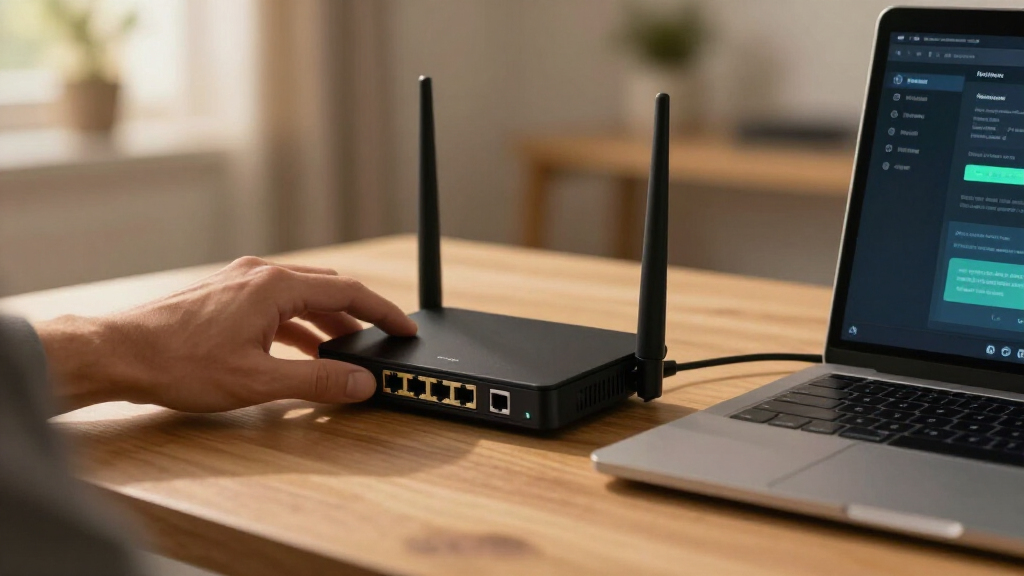
For example, if your home router offers an update through its official administration app, make sure you have the correct router selected and allow the reboot to complete. If you manage a small business network, first plan for the brief outage and check any connected equipment afterward. A careful routine keeps a useful security fix from becoming an avoidable service interruption.
Updates help, but they cannot make every device secure
Firmware updates reduce known risks, but they cannot guarantee a device is secure. A patch can correct a vulnerability or strengthen protections such as signature checks and secure boot. Security still depends on the quality of the design, how the device is configured, the other components it contains, and whether its manufacturer keeps supporting it.
Secure boot can help a device check that approved code runs during startup, but it does not eliminate every firmware flaw. Likewise, a manufacturer’s update can fix one component while another component has a separate version and supplier. If your laptop utility reports a BIOS update complete, that does not automatically tell you the firmware status of every other part.
Support also has a time limit. A five-year-old smart camera may still stream video while its maker has stopped issuing security fixes. If a new flaw appears after support ends, the camera may remain exposed because there is no patch to install. You might be able to reduce risk by placing it on a separate network, but that is not a substitute for fixes in all cases.
Long-lived equipment makes the problem sharper. An industrial controller can remain in service for years, and replacing it may require planning around safety, cost, and downtime. Manufacturers, component suppliers, operating-system vendors, and cloud services can all play a role in delivering fixes. For organizations, inventories and software component lists can help identify what is installed, though firmware versions are not always easy to discover consistently.
A few checks help you manage older and less visible devices
Your update habits should match the device’s role: a personal tablet can often use automatic updates, while a router or work controller may need a documented check and maintenance plan. Start with the devices that connect to the internet, store sensitive data, or control something important. Then confirm who provides updates and how you can tell whether support is still active.
- Check update settings. Turn on supported automatic updates for devices where the maker recommends them. For manual updates, add a recurring reminder to check the official support page.
- Keep a short device list. Record model, firmware version if visible, update source, and support status. In a small office, a simple spreadsheet can prevent a forgotten access point from quietly falling behind.
- Look beyond the main computer. Routers, cameras, printers, smart speakers, and storage devices may each have their own firmware. An operating-system update does not update them all.
- Plan for end of support. If a device has no more security updates, consider replacing it or limiting what it can reach. A retired router should not remain the trusted gateway for a home network.
For a household, this might mean checking the router once a month while phones update automatically. A workplace could assign an owner to review vendor notices before planned maintenance. The goal is to make support visible, since firmware has no obvious screen or icon when it quietly ages in the background.
Frequently Asked Questions
What is the difference between firmware, software, and a driver?
Firmware is software stored for a device or hardware component, often running during startup or on the component itself. A driver helps the operating system communicate with hardware, while apps and operating systems are the software you interact with directly. The boundaries can vary by product, so check the maker’s update notes for the part being changed.
Can malware stay on a device after I reinstall its operating system?
In some cases, malicious code or an exploited weakness may affect firmware that an operating-system reinstall does not replace. That is not the usual outcome of everyday malware, and the details depend on the hardware and attack. If you suspect a serious compromise, use the manufacturer’s recovery guidance or seek qualified support rather than relying on an OS reinstall alone.
How can I tell whether a firmware update is legitimate?
Use the device maker’s official update utility or support site, and confirm that the package matches your exact model. Avoid links to firmware files sent in unexpected messages or posted on unfamiliar sites. If instructions are unclear, check the manufacturer’s support page before installing.
Should I install a firmware update immediately?
Apply security fixes promptly through the official process, while following any model-specific instructions. For equipment that supports work or essential services, an organization may first check compatibility and schedule a maintenance window. The right timing depends on the update and what the device does.
Can a firmware update damage or disable my device?
A failed, interrupted, or incompatible update can leave some devices unusable. Check the model, follow the maker’s steps, and keep the device powered as directed. If installation fails, use the supported recovery procedure rather than trying an update package intended for another model.
What should I do when a device stops receiving firmware updates?
The device may keep working, but newly discovered vulnerabilities may remain unpatched. Consider whether you can replace it, remove it from sensitive tasks, or limit its network access. For a camera that no longer receives support, for example, keeping it off a network with personal computers may reduce exposure, though it cannot provide the protection of a vendor fix.
Conclusion
Remember that firmware updates maintain the software that helps your hardware start and work safely. Check the devices you rely on, use official update channels, and follow the instructions for each model. If a device no longer receives fixes, decide whether it still belongs on a network or in a sensitive role.
A router, laptop, or camera can look perfectly ordinary while its support clock runs quietly in the background. A brief update check helps keep that hidden layer in view.
Fall Picks
fall essentials
As an affiliate, we earn on qualifying purchases.