
TL;DR

Get privacy and security gear delivered free with Prime
- Fast, free delivery on millions of items
- Prime Video, Amazon Music and more included
- Member-only deals all year
A router may store Wi-Fi and administrator passwords, provider settings, device names, VPN details, rules, and limited logs, depending on its model and features. These details can reveal how your network was configured or leave access paths behind if they are reused. Before you return, sell, donate, or recycle the router, follow the model-specific factory reset instructions, verify the old network credentials no longer work, remove any storage, and unlink connected accounts. For sensitive or regulated information, check the manufacturer’s secure-erasure guidance and your organization’s disposal rules.
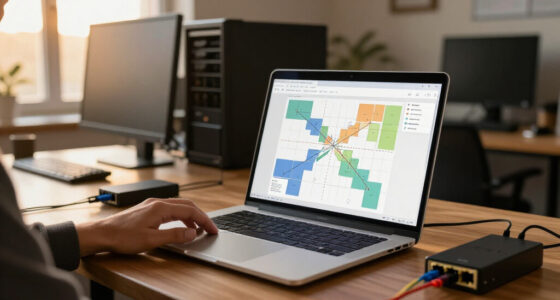
Your old router may be a small plastic box with dusty vents, but it can still remember the keys to your home network. Depending on the model and features you used, it may hold the Wi-Fi password, administrator credentials, provider settings, device names, VPN details, and limited logs. Those details matter because they can expose how your network was arranged or, if a password was reused, point to credentials that still protect another device.
This guide shows you how to retire old routers without leaving data behind: what to check, how to reset and verify the device, and how to handle rented, broken, or sensitive-use equipment. A reboot is not a reset, and a reset is not automatically proof that every bit of storage has been securely overwritten. The right level of care depends on what the router handled and who will receive it.
Think of retirement as closing two doors: clear the router itself, then remove it from any cloud account or management app. The first addresses local settings; the second prevents a retired device from remaining associated with your account. A few careful checks can prevent an old device from lingering in your account or carrying your settings into someone else’s hands.
A router may store Wi-Fi and administrator credentials, provider settings, device names, VPN details, rules, and limited logs; the exact mix varies by model an…
A reboot does not erase saved settings. Follow the exact model’s factory-reset procedure and verify the old credentials no longer work.
Remove USB drives or memory cards separately, then unlink the router from any cloud-management account or app.
Return rented equipment according to provider instructions; check secure-erasure and organizational rules for sensitive or regulated information.
Change passwords reused on other devices and use an electronics recycling program or the provider’s return process.
Device retirement guide · Network hygiene
How to Retire Old Routers Without Leaving Data Behind
A dusty router can still remember the keys to your home network. Clear its saved settings, verify the reset, remove separate storage, and unlink online accounts before it changes hands.
What might the router remember?
The exact mix depends on the model, firmware, enabled features, and removable storage. These settings can reveal how a network was arranged, even when the device does not keep a complete browsing-history archive.
Credentials & provider settings
Wi-Fi name and password, administrator login, and internet-provider connection details may remain saved.
Devices, rules & VPNs
Device names, parental controls, VPN configuration, and port-forwarding rules can expose parts of your setup.
Limited records or files
Some models keep diagnostic or connection logs. USB drives or memory cards may hold backups or files separately.
Keep expectations realistic: logging varies. Limited logs are not the same as a complete, long-term record of every website visited.
Reset, then prove it worked
Find the exact model number on the router and follow its manual or manufacturer support page. Button locations, hold times, and menu options vary between models.
- 01
Identify the exact model
Check the label on the bottom or back; look up the matching instructions.
- 02
Use the documented factory reset
Some devices use a recessed button while powered on; others use a web interface or app.
- 03
Let the full restart finish
Wait for the setup network or initial configuration screen. Avoid interrupting power early.
- 04
Test the old credentials
Confirm the old Wi-Fi name and password no longer connect; check the manual for other indicators.
Match the handoff to the situation
A household sale, a provider return, and disposal of a device used for sensitive work can call for different checks.
| Situation | Before handoff | Extra care |
|---|---|---|
| Sell or donate | Run the model-specific reset and verify the old credentials fail. | Remove separate storage; unlink cloud-management accounts. |
| Rented gateway | Follow the provider’s return instructions and deadlines. | Remove personal USB or card storage before returning it. |
| Sensitive or regulated use | Check manufacturer secure-erasure guidance. | Follow your organization’s disposal rules; a normal reset may not be enough. |
After retirement: change Wi-Fi or administrator passwords reused on other devices. Use an electronics recycling program or the provider’s return process instead of household trash.
Close both doors before it leaves
A careful retirement covers both the router’s local settings and its online connections.
Know what your router may still remember
An old router may retain network credentials and configuration, even if it does not keep a complete record of every website you visit. The exact information depends on the model, firmware, features you enabled, and whether the device has removable storage. Knowing what may remain helps you choose the right next step: ordinary household settings call for a careful reset, while sensitive work configuration may require an approved disposal method.
Common saved items include the Wi-Fi name and password, administrator login, internet-provider settings, device names, parental controls, VPN configuration, and port-forwarding rules. These settings can reveal how the network was arranged, and some can create risk if they are reused elsewhere. For example, VPN details may identify a work connection, while port-forwarding rules can show which devices were made reachable from outside the home. Imagine a router that once connected a work laptop, a child’s tablet, and a home camera: its device list or rules might reveal more about the household setup than its owner expects.
That does not mean every router holds a neat browsing-history archive. Many do not work that way by default, and logging differs across devices. A few diagnostic or connection logs are not the same as a complete record of browsing, so avoid assuming either that everything was recorded or that nothing was. If you want to know what your particular model records, check its manual or settings before retirement.
Some gateways also accept a USB drive or memory card. That storage could contain files or backups separate from the router’s built-in settings, so inspect it before you pass the equipment along. A factory reset aimed at router configuration may not erase files on a removable drive, which is why storage needs its own decision and handling.
As an affiliate, we earn on qualifying purchases.
Use the model-specific reset and check that it worked
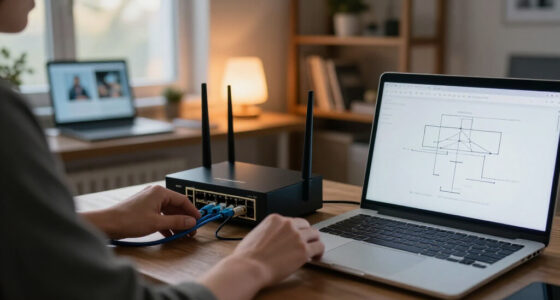
To clear an old router, follow the factory-reset instructions for its exact model, then confirm it returned to its initial setup state. Reset buttons, hold times, and menu options vary, so the label on the case alone may not tell you the right sequence. Using the documented method reduces the chance of merely restarting the device or changing one setting while leaving other configuration intact.
- Find the model number. Check the label on the bottom or back of the router and locate its manual or manufacturer support page. Model variations can use different reset procedures even when the devices look nearly identical.
- Follow the documented reset procedure. Some models use a recessed button while powered on; others offer a reset option in a web interface or app. Use the specified method because an incorrect button press or sequence may only trigger a reboot or another function.
- Wait for the full restart. Give the router time to reboot and show its setup network or initial configuration screen. Interrupting power too early can make the result unclear and, on some devices, may leave the reset incomplete.
- Verify the old settings are gone. Check that the old Wi-Fi name and password no longer connect, and consult the manual if the default indicators are unclear. Verification matters because a reset is only useful if it actually returned the device to its initial state.
A reboot just turns the device off and on. It is like closing and reopening a notebook: the writing stays inside. A factory reset is intended to restore default settings, but the reset process is model-specific and does not promise secure overwriting of every storage area. That distinction is practical: for a household sale or donation, a verified reset is commonly the relevant preparation; for sensitive or regulated data, the reset may not meet the required assurance.
For example, if your old network was called “MapleHouse” and used a custom password, seeing a fresh setup network after reset is a useful sign. If the old name still appears and the old password works, stop and check the manufacturer’s instructions again. Do not treat a single indicator as proof if the manual describes another confirmation step.
As an affiliate, we earn on qualifying purchases.
Remove storage and unlink accounts before the handoff
Before a router leaves your home, remove any USB drive, memory card, or other removable storage, and unlink the device from cloud-management accounts or apps. These steps cover information and access that a factory reset may not address by itself. They also prevent a new owner from receiving files or seeing a device that is still associated with your account.
Look for a USB port or card slot, then check the manual to learn whether your model supports storage. If you used a drive for backups or shared files, keep it or erase it separately with the right process for that storage device. For instance, a gateway beside a desk might have a thumb drive containing a configuration backup; returning the gateway with that drive could hand over more than the network box. The router reset and the drive’s erasure are separate tasks because the drive may retain its contents independently.
Next, open the router’s management app or account and remove the old device if it remains listed. Cloud access may help you manage a router from your phone, but a retired device should not sit among your active equipment like a house key you forgot to return. Removing it also makes the account’s device list more accurate, reducing confusion if you later need to manage or troubleshoot the router that replaced it.
Unlinking is not a substitute for resetting. It clears the account association, while the local reset handles saved router settings. Doing only one leaves the other issue unresolved: a local reset may leave an account listing, while unlinking does not clear local configuration. Do both when your model and account support them, and keep a note of any confirmation the app provides.
As an affiliate, we earn on qualifying purchases.
Choose the right path for rented, sensitive, or broken equipment
How you retire a router depends on who owns it and what it handled. Return provider-owned equipment according to the provider’s instructions, use the manufacturer’s secure-erasure guidance for sensitive personal equipment, and follow your organization’s disposal policy for business or regulated data. The tradeoff is between convenience and assurance: a normal reset is straightforward for ordinary household use, but it may not provide evidence of secure erasure when data handling rules require more.
| Situation | What to do | Example |
|---|---|---|
| Rented modem-router | Follow the provider’s return process; remove your own storage first. | Pack the gateway and required power supply for the provider’s return. |
| Personally owned household router | Factory-reset and verify it; recycle or transfer it responsibly. | Reset a spare router before donating it. |
| Device used for sensitive work | Check manufacturer guidance and your organization’s secure-disposal rules. | Ask your IT team before retiring a router that held business VPN settings. |
| Router that will not power on | Use an appropriate recycling route and follow policy if it held sensitive data. | Ask the provider or recycler what to do with an unresponsive gateway. |
A rented gateway is not yours to dismantle or destroy. The provider may require particular parts or a specific return method, so check its instructions before packing it up. Following the return process helps avoid a missing-equipment dispute and keeps the device in the provider’s intended service or recycling stream.
For a router used with financial, healthcare, or business systems, a normal reset may not meet your organization’s requirements. A reset usually removes saved settings for household use, but it should not be described as forensic-grade erasure. When the stakes are higher, ask the responsible IT or security team what method they require; that decision depends on the data, the device’s storage, and the rules that apply to the organization.
As an affiliate, we earn on qualifying purchases.
Protect the rest of your network after retirement
After the router is reset or returned, update any reused passwords and remove stale device references from your network accounts. Retiring one box will not change the same password you may still use on another router, service, or administrator account. This follow-up matters because a credential can remain useful wherever it was reused, even after the original device is gone.
Think back to the setup day: perhaps you used the same administrator password on a second access point, or the same Wi-Fi password on a guest network. If so, change those remaining credentials. A practical example is a small home office where an old router’s admin password also opens the settings on a current spare device. The retired router is gone, but the reused password still deserves attention. Prioritize administrator credentials and any password that also protects an account beyond the local network.
Check your provider or cloud-management account for the old router’s name and remove it if it remains listed. Then confirm your active router still has the settings you expect. If you changed Wi-Fi credentials during the handoff, reconnect your devices carefully so you do not accidentally leave a camera or printer using an outdated network profile. A quick inventory helps distinguish devices that need updating from devices that should no longer be connected.
Use an electronics recycling program or the provider’s return process instead of putting networking gear in household trash. Recycling keeps equipment in a suitable disposal stream, while a clear account list makes it easier to see which router actually serves your home.
Use a short checklist before the router leaves
A simple checklist makes router retirement easier to repeat and harder to rush. Each step closes a different gap: the reset clears configuration, verification catches a failed reset, storage removal handles separate files, and account unlinking removes the device association.
- Identify the exact model and read its reset instructions.
- Factory-reset the router using the documented method.
- Verify the reset by checking for the default setup network or screen and confirming the old credentials no longer connect.
- Remove removable storage and handle its contents separately.
- Unlink cloud accounts and apps where the device is still listed.
- Change reused passwords on other devices or accounts.
- Return or recycle it properly, following provider instructions or your organization’s disposal rules.
For example, if you are replacing a router on a Sunday evening, take a photo of the old model label before packing it away. That gives you a quick reference if the reset indicators are confusing or you need to revisit the manufacturer’s instructions later. It can also help you identify the exact device if you contact support after the handoff.
If a step fails—perhaps the reset button does nothing or the router will not power up—do not guess at a more aggressive procedure. Check the model’s support guidance. If the device held sensitive work information, ask the organization responsible for that network how to proceed. The checklist is a practical household safeguard; the organization’s disposal rules take precedence when they apply.
Frequently Asked Questions
What personal information can a router store?
Depending on the model and features you used, it may store Wi-Fi and administrator credentials, provider settings, device names, parental-control rules, VPN details, port-forwarding rules, and limited logs. These details can reveal parts of your network setup, though they do not necessarily amount to a full browsing record. USB storage or a memory card may hold separate files or backups, so inspect those separately.
Does a router keep my browsing history?
Some routers keep limited logs, but many do not act as a complete, long-term browsing-history archive by default. Logging varies with the device and its configuration, so check your model’s documentation if you need a precise answer. A limited connection or diagnostic log should not be assumed to show every site visited.
How can I tell whether a factory reset worked?
After it restarts, look for the default setup network or initial setup screen, then check that the old Wi-Fi name and password no longer connect. These signs give practical evidence that the saved configuration has been cleared, though they do not prove forensic-grade erasure. The exact signs vary by model, so use its manual when the indicators are unclear.
Is a factory reset enough before selling or donating a router?
For many household situations, a successful factory reset is the usual preparation, along with removing storage and unlinking any management account. Those steps address local configuration, separate files, and the account association. A reset is not a guarantee of forensic-grade erasure, so check secure-erasure guidance if the router held sensitive or regulated information.
Should I remove an old router from its app or cloud account?
Yes, if the router is still linked to a management account. Unlinking removes the retired device from your account’s device list, which helps prevent confusion and clears its account association. It does not clear the router’s local settings, so reset it separately.
What should I do if my rented router will not reset?
Follow the provider’s return instructions and contact the provider for guidance if the reset fails or the device will not power on. The provider owns the equipment and can tell you whether to return it as-is or follow another process. Do not dismantle or destroy provider-owned equipment; remove your own removable storage if the instructions allow it.
Conclusion
Before an old router leaves your hands, reset it, verify the reset, remove storage, and unlink its account. Each step addresses a different place settings or access may remain. If it held sensitive work information or will not reset, check the manufacturer’s guidance and the relevant disposal policy.
Then send it to the right return or recycling route. The little box that once carried your home’s connection can leave quietly, with its old keys put away.
Halloween Picks
halloween
As an affiliate, we earn on qualifying purchases.