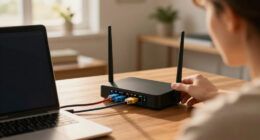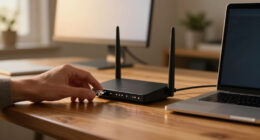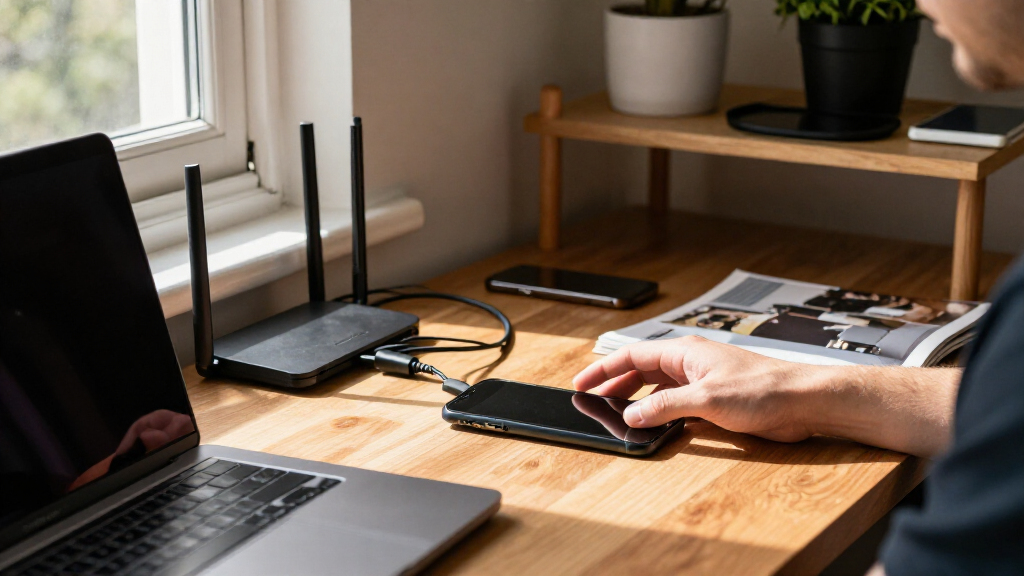
TL;DR

Get privacy and security gear delivered free with Prime
- Fast, free delivery on millions of items
- Prime Video, Amazon Music and more included
- Member-only deals all year
To separate work devices from personal devices, use distinct devices when your employer provides them, and keep work accounts, files, browsers, and backups in approved work spaces. If one device must serve both purposes, follow your employer’s policy and use its approved work profile or access tools; a separate browser profile helps organize activity but does not make it private from administrators.
Your personal phone buzzes during dinner: a work email, a calendar alert, then a message from a colleague. The same small screen now holds your family photos, company files, and the feeling that you are still on the clock.
Separating work devices from personal devices can protect private information and make that boundary easier to see. It is not just a question of owning two phones. Your accounts, browser sessions, file storage, backups, notifications, and employer’s device management all shape how much separation you actually have.
This guide shows you how to set up practical boundaries, what to check before using a personal device for work, and how to handle the awkward moments: a lost phone, an after-hours alert, or leaving a job. The goal is a setup that fits your workplace rules and lets your personal life feel like yours again.
Use employer-issued equipment for work when it is available, and follow the organization’s rules for approved devices and apps.
Keep work accounts, files, downloads, cloud storage, and backups in approved work locations.
Use browser profiles to organize sessions, but do not treat them as privacy protection from employer monitoring or networks.
Before enrolling a personal phone, check what administrators can view, manage, or erase.
Set work notification hours where your role and employer policy allow, and learn the reporting process for a lost device.
Digital boundaries · Practical guide
How to Separate Work Devices From Personal Devices
Keep company information in approved work spaces and personal life in its own lane. Clear rules for devices, accounts, files, alerts, and management make the boundary easier to maintain.
Use issued equipment
Keep accounts distinct
Check sync and backup
Manage alerts and access
01 / Why separation matters
Make the boundary visible.
Keeping work and personal information apart reduces mix-ups, supports privacy, and makes it easier to switch off at the end of the day.
Use separate devices
When your employer provides approved equipment, keep work email, documents, and collaboration apps there.
Keep accounts apart
Use your work identity for work services and your personal identity for personal email, calendars, and apps.
Choose the right storage
Save company documents in employer-approved storage. Check downloads, synced folders, photos, and backups.
Separate sessions
Browser profiles help separate bookmarks, logins, and tabs. They are an organizing tool, not a privacy shield.
Protect both devices
Use updates, screen locks, encryption, unique passwords, and multifactor authentication as policy requires.
Quiet the alerts
Where your role and policy allow, use focus modes or quiet hours to reduce after-hours interruptions.
02 / A repeatable setup
Give every item a home.
Build a few simple habits around your work identity, approved storage, and the devices you actually use.
Start with employer policy
Use approved devices, apps, and sign-in methods. Ask IT what applies to your setup.
Route work data
Sign in with your work account and set approved work storage as the default for documents.
Review sync and backup
Check photo uploads, downloads, synced folders, and backups on both work and personal devices.
Set a stopping point
Keep work alerts off personal devices where possible; use allowed quiet hours and focus settings.
03 / Your device arrangement
Choose a boundary you understand.
Two devices provide a clear day-to-day split. If you must use one, rely on employer-approved controls and understand their limits.
When work devices are available
- Keep company accounts, approved apps, and work documents on the work device.
- Keep personal email, photos, shopping, and private backups on your own device.
- Follow IT instructions for updates, screen locks, passwords, and multifactor authentication.
- Read the device notice before using a managed work device for personal accounts.
When one device must do both
- Follow policy and use an approved work profile, container, or operating-system account.
- Use a separate browser profile to organize work sessions, bookmarks, and saved logins.
- Check what administrators may view, manage, or erase before enrolling a personal device.
- Do not assume a browser profile makes activity private from your employer or network.
04 / Quick comparison
Know what each boundary does.
Common tools offer different kinds of separation. Confirm the details for your employer, platform, and enrollment method.
| Setup | What it helps separate | What to remember |
|---|---|---|
| Employer-issued device | Work apps, files, and management | Treat it as a work tool; management and visibility vary by policy. |
| Approved work profile | Organizational apps and data on one device | Check the enrollment notice and remote removal capabilities. |
| Separate browser profile | Sessions, bookmarks, and saved logins | Organizes browsing; does not guarantee privacy. |
| Separate cloud storage | Work documents versus personal files | Check default save locations, downloads, and automatic sync. |
05 / Plan for the awkward moments
Protect the boundary when plans change.
Lost devices, late alerts, and offboarding are easier to handle when you know the process before you need it.
Report it promptly
Know the employer’s reporting route. Use approved tools to lock or locate a device, if instructed.
Set alert boundaries
Use focus modes or notification schedules where your role and workplace rules permit.
Follow offboarding steps
Return equipment, remove work accounts as directed, and transfer only personal files. Keep company data in approved systems.
Visibility depends on the setup.
Device ownership, enrollment, installed software, platform, and employer policy all matter. Ask for the current device and privacy notice before using a personal device for work.
The separation chain
One clear route from login to logoff.
Keep work data in approved work spaces, then let your personal time return to your own devices.
Why separation protects your privacy and your evenings
Separating work devices from personal devices helps keep company information and your private life in different places. It can also make it clearer when you are available for work, reduce accidental file sharing, and simplify IT support. If your employer manages a work laptop, the organization can apply its rules to that device without needing the same access to your personal photos and messages.
Think of the boundary as two labeled drawers. If work and personal items go into the same drawer, you may grab the wrong document when you are rushing out the door. A work spreadsheet could end up in your personal cloud drive, or personal photos could be included in a work device backup. Distinct devices, accounts, and storage locations make those mix-ups less likely.
For example, imagine you finish a report on a company laptop and save it to the employer’s approved cloud storage. You can close the laptop at the end of the day, while your personal tablet stays free of work files and alerts. That is a practical boundary: work data stays in work spaces, and your off-hours device can stay quiet.
Separation is a habit, not a gadget. Two devices help, but the accounts, files, and notifications on them matter just as much.
Remote and hybrid work can blur the line. You might use a home network, a personal phone for multifactor authentication, or a shared desk for both work and personal tasks. You do not need a perfect wall; you need clear, repeatable rules that fit your employer’s policy and the devices you actually use.
business phone with separate work profile
As an affiliate, we earn on qualifying purchases.
As an affiliate, we earn on qualifying purchases.
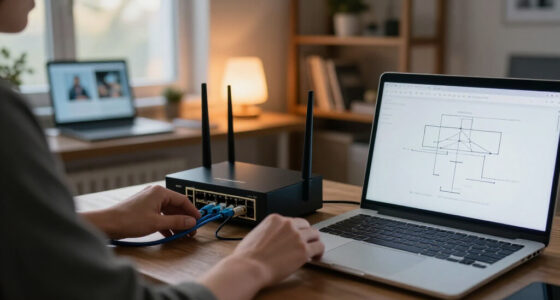
Use separate devices when your employer provides them
Separate work and personal devices give you the clearest day-to-day boundary when your employer provides approved equipment. Keep company email, documents, and collaboration apps on the work device, and use your personal phone or computer for personal accounts. This cuts down on crossed sessions and gives IT a clear place to apply required security settings.
A company laptop may have endpoint-management software that checks settings, protects work files, or helps IT respond to a security issue. What administrators can view or control depends on the device, setup, and policy. A work-issued phone may also be managed, so treat it as a work tool and check the organization’s device notice before using it for personal accounts.
Suppose your employer gives you a laptop and asks you to use it for video calls and documents. Sign into work services with your work identity and save files to the approved company storage. Keep personal banking, shopping, and family photos on your own device. That simple split makes support easier too: if the laptop needs repair, you know which files belong in the company’s systems and which ones should never have been there.
When you set up the equipment, follow the instructions from IT rather than adding apps or accounts on impulse. Check that the screen lock is active, install updates when prompted, and use the approved password and multifactor authentication methods. Use the work device for work, even when mixing accounts seems convenient for a minute.
- Work laptop: company accounts, approved apps, and work documents.
- Personal device: personal email, photos, shopping, and private backups.
- Personal phone for a work sign-in: only if policy allows it, using the approved method.
A separate device does not automatically settle every privacy question. Read the employer’s policy, especially if you plan to use a managed device after hours or connect personal storage. The cleanest arrangement is one you understand and can maintain on a busy Tuesday.
dual SIM phone for work and personal use
As an affiliate, we earn on qualifying purchases.
As an affiliate, we earn on qualifying purchases.
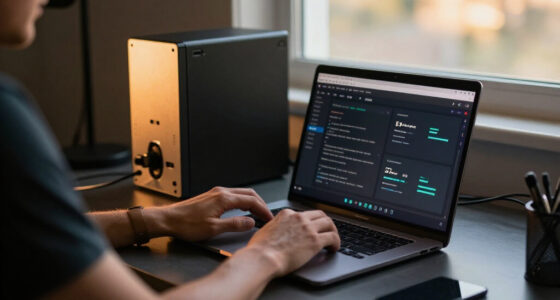
Keep work accounts, files, and backups in their own lanes
Separate work and personal accounts by using your work identity for work email, calendars, cloud storage, and collaboration tools. Save company documents in employer-approved locations, and keep personal documents in your own storage. Accounts and backups act like pipes behind the scenes: when you connect the wrong service, files and photos can flow somewhere you did not intend.
For example, a phone may automatically upload every photo to a personal cloud account, while a work app downloads a presentation into the same device’s general files folder. Before using either device, check where downloads go, which folders sync, and what the backup includes. A quick review can catch a work folder being synced to a personal account—or personal photos being copied onto a company-managed laptop.
Passwords need their own clear boundary too. Use unique passwords for every account and multifactor authentication where available. Some password managers support separate work and personal vaults, but your employer may require an approved tool or prohibit company credentials in a personal vault. Follow that policy; convenience is not worth losing track of who controls a credential store.
How to separate your accounts and files:
- Sign into work services with your work identity and personal services with your personal identity.
- Set the approved work storage location as the default for work documents.
- Review photo uploads, downloads, synced folders, and device backups on both devices.
- Remove personal accounts from managed work equipment if policy says to keep them off.
- Use unique passwords and the approved multifactor authentication method for each work account.
Consider a common Friday afternoon rush: you download a contract to the desktop so you can finish it quickly. If the desktop syncs to your personal drive, the company file may end up outside approved storage. Saving directly to the employer’s work folder makes the right choice the easy one.
browser profile extension for privacy
As an affiliate, we earn on qualifying purchases.
As an affiliate, we earn on qualifying purchases.
Use browser profiles for order, not as a privacy shield
A separate browser profile keeps work and personal browsing sessions organized by separating items such as bookmarks, saved logins, and extensions. It is useful when your employer allows personal use of a computer or when you must work on an approved shared device. But a profile is an organizational boundary, not a promise that nobody can see activity.
On a personal laptop approved for work, you could create one browser profile for company email and collaboration tools, then another for personal banking and shopping. The work profile can hold work bookmarks and approved extensions, while the personal profile keeps your own saved logins separate. This reduces the chance that you send a document from the wrong account or open a personal session during a screen share.
The limit matters. Browser profiles do not hide activity from employer monitoring software, the employer’s network, or services you sign into. If your employer requires a managed browser or device checks, those controls may apply regardless of which profile you open. Follow the organization’s policy, and ask IT what applies if the enrollment or monitoring notice is unclear.
Picture a video call where you share a window and your personal shopping tab sits just beside the work document. Separate profiles reduce that kind of awkward collision. They also help when a teammate asks you to open a work link: you can use the work profile without searching through personal bookmarks.
A browser profile is a labeled workspace, like a folder on a desk. It helps you keep papers sorted, but it does not change who owns the desk or what rules apply to it. Use profiles for convenience and fewer mistakes, while relying on approved devices and policies for actual management boundaries.
device management software for employees
As an affiliate, we earn on qualifying purchases.
As an affiliate, we earn on qualifying purchases.
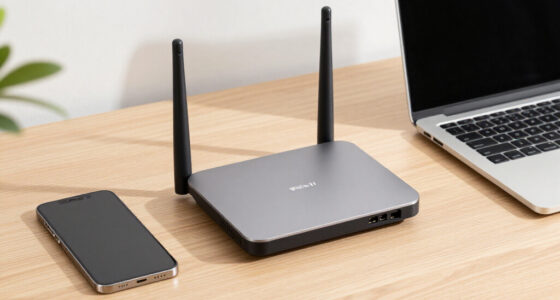
Know what your employer can manage on a personal phone
On a personal device used for work, your employer’s visibility and control depend on the enrollment method, installed software, and written policy. Some organizations use a managed work profile or container to keep company apps and data apart from personal content. Some can remove work data remotely, but the exact capability depends on the platform and setup.
Before enrolling your phone, read the enrollment notice. Look for what information administrators can view, what settings they can enforce, and whether they can erase all device data or only work data. If the wording is vague, ask IT for a plain-language explanation. You deserve to know what you are agreeing to before a work profile appears beside your personal messages.
For instance, your employer may let you read work email through an approved app on your personal phone, while preventing company attachments from opening in personal apps. That can protect work documents without mixing them into your personal cloud drive. Still, the arrangement is only useful if you know how it behaves when the phone is lost or when you leave the company.
Use a personal device for work only when your employer permits it and provides clear requirements. Keep its operating system and apps updated, use a screen lock, and install work apps only through approved sources. A work profile helps create a boundary, but it does not turn a personal phone into a fully separate work device.
Ask these questions before enrollment:
- What personal information can administrators see?
- Can the organization erase only work data, or the whole device?
- Which work apps and storage locations must you use?
- What steps should you take if the phone is lost or you leave the job?
Policies and tools change, so check the current notice rather than relying on a coworker’s experience from two years ago. A colleague’s phone may be enrolled differently, even if both devices show the same work email app.
Set notification boundaries that let your evening stay yours
Keeping work alerts off your personal devices, where possible, gives your attention a clearer end-of-day boundary. If work notifications must reach your phone, use approved focus settings, quiet hours, or a dedicated work profile to reduce interruptions. A device can be secure and still tug at your sleeve every few minutes.
Say you finish work at 5:30 p.m. but keep company email on your personal phone. A message preview lights up during dinner, and even if it is not urgent, you start mentally drafting a reply. Turning off work previews or setting a quiet-hours schedule can stop that small glow from taking over the evening. If your role includes on-call duties, agree on the right alert channel with your employer instead of silencing everything.
Some phones let you pause work apps or switch profiles. Other setups use a separate work phone that can stay in a bag or on a charger after hours. The best choice depends on your job and workplace rules. If you need personal-phone multifactor authentication, you can often keep that function without enabling every work notification, but check the approved process first.
Try this simple routine:
- Choose a clear end-of-day time, unless your role requires on-call availability.
- Set work apps to quiet hours or disable personal-device alerts where policy allows.
- Keep urgent work channels distinct from routine email.
- Review the setting after a week and adjust if you miss genuinely time-sensitive messages.
Availability is a setting you can shape, not just a feeling you have to accept. The phone that buzzed through dinner can become quiet again, while genuine work emergencies still have a defined route to reach you.
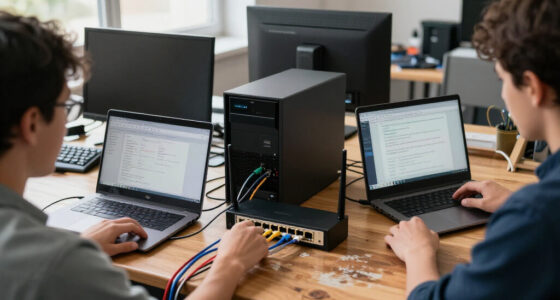
If one device has to do both jobs, make the boundary visible
If you must use one device for work and personal tasks, use an employer-approved work profile, container, or separate operating-system account. These tools can keep work apps and files apart from personal ones, but their protections vary by platform and configuration. A second browser profile alone is not a secure substitute for the method your employer approves.
Imagine a contractor who uses one laptop at the kitchen table for video calls and family errands. A separate operating-system account for work can keep work bookmarks, downloads, and notifications distinct from personal use. If the employer requires a managed work profile or secure access service, use that setup instead. Do not improvise with unapproved software or move company documents into personal storage just to make a workflow easier.
Keep the basics active on both sides: install updates, use a strong screen lock, turn on device encryption where available, and protect accounts with unique passwords and multifactor authentication. Get apps from trusted sources and avoid sharing your work account with family members. A child borrowing the laptop to print a school form should not be able to open a work session by accident.
Shared computers need extra care. Sign out of work services when you finish, avoid saving passwords in a shared account, and do not leave sensitive documents in a general downloads folder. If the device lacks required protections or your employer does not permit personal hardware, use an approved work device or ask IT for a supported option.
The tradeoff is straightforward: one device saves space and cost, while separate devices usually provide a clearer boundary and simpler support. Choose based on policy, the sensitivity of the work, and whether you can keep the approved separation in place every day.
Handle a lost device or job change without mixing the data
If you lose a work device, report it to IT promptly and follow the organization’s incident process. If you used a personal device for work, report that too, even if you think the work profile is separate. Your employer may be able to lock a managed device or remove work data, while you may need to use device-finding tools or change affected credentials.
For example, you leave your phone in a taxi after a long commute. The first step is to contact your workplace’s support or security channel, not to wait and see whether it turns up. Then use the approved device-finding or remote-lock feature if available, and follow IT’s advice about passwords and work access. Quick reporting gives the organization a chance to protect company accounts before someone else can use the device.
When you leave a job, return employer-owned equipment and follow instructions for removing work accounts or management profiles from personal devices. If a company-managed laptop contains personal files, ask how to retrieve them before equipment is wiped. Do not copy company documents to a personal drive as a keepsake or shortcut; retain work information only when you have explicit authorization.
It helps to prepare before either event. Know the incident-reporting contact, keep personal files off company equipment, and understand the device’s enrollment notice. That way, a lost phone is a solvable task rather than a scramble through old messages to find the right number.
Keep the exit path clear: personal files should be yours to retrieve, and company data should remain with the company. The same separation that helps during a normal workweek makes device return and account removal less confusing.
Frequently Asked Questions
Can my employer see my personal photos, messages, or browsing?
It depends on whether the device belongs to your employer, how it is enrolled, what software it runs, and the organization’s policy. A work-issued device may be managed more extensively, while a BYOD work profile is often designed to separate work data from personal content. Read the enrollment notice or ask IT what administrators can view and control.
Is a work profile enough to protect my privacy?
A work profile can create a useful boundary around work apps and data, but its protections vary by platform and configuration. Check whether the employer can remove only work data or control other device settings. Ask for a plain-language explanation before enrolling if the notice leaves you unsure.
Can I use my personal phone for work email or multifactor authentication?
Often you can, but your workplace policy decides what is allowed. If permitted, use the approved app or work profile, keep a screen lock enabled, and avoid saving work files to personal apps or cloud accounts. You may be able to use the phone for multifactor authentication without turning on every work notification.
Do separate browser profiles keep work activity private?
No. Profiles help separate bookmarks, saved logins, and sessions, which can prevent mix-ups when you switch between work and personal tasks. They do not hide activity from employer monitoring software, the employer’s network, or services you sign into.
What should I do if I lose a device used for work?
Report it promptly through your organization’s incident process, even if it is your personal phone with a work profile. Use device-finding or remote-lock tools where available, then follow IT’s advice about removing access or changing credentials. The right response depends on how the device was enrolled.
What should I do with work data when I leave my job?
Return employer-owned equipment and follow instructions for removing work accounts or management profiles from personal devices. Ask how to retrieve your personal files before a company-managed device is wiped. Do not keep company documents in personal storage unless you have authorization.
Conclusion
Start with the boundary you can keep every day: use separate devices when available, and keep work accounts, files, and backups in the approved work space. If one device must serve both sides, use your employer’s approved profile or access method and read what the setup allows administrators to manage.
Then give your evenings a boundary too. The phone that buzzed through dinner can rest face down, dark and quiet, while your work stays where it belongs.
Columbus Day / Indigenous Peoples' Day Picks
long weekend sales
As an affiliate, we earn on qualifying purchases.