
TL;DR

Get privacy and security gear delivered free with Prime
- Fast, free delivery on millions of items
- Prime Video, Amazon Music and more included
- Member-only deals all year
To prepare network gear for a remote site, confirm the site’s internet, power, environment, devices, and coverage needs before choosing equipment. Configure and label it for that location, test the full kit, document secure remote access and recovery steps, and track the shipment and device records. A cellular backup or cloud-managed setup helps only when its coverage, access controls, and failure procedures have been tested.
A router can arrive with every setting correct and still leave a branch office offline because its power supply is missing or no one knows which cable belongs in which port. At a remote site, a small packaging or labeling mistake can mean hours of delay while someone waits for help.
This guide shows you how to prepare network gear for remote sites before it leaves your hands. You’ll check the building and its internet service, match equipment to the conditions, configure and label it, and plan for secure remote support and recovery. The goal is simple: give the person on site a clear path to get connected, and give your team a safe way to help when something goes wrong.
Document internet service, device count, coverage, power, mounting, and environmental conditions before selecting hardware.
Configure settings for the specific site, check subnets against connected networks, and label devices, ports, cables, and power supplies.
Use encrypted, controlled remote access, unique credentials, multi-factor authentication where supported, and monitoring.
Test backup connectivity and recovery steps; cellular failover needs real signal, a suitable plan, and a working configuration.
Track serial numbers, firmware, configuration backups, support details, and the final installed layout.
Field guide / Network readiness
How to Prepare Network Gear for Remote Sites
Build a reliable deployment before the box leaves your hands. Confirm the site, match the gear to its conditions, configure and label every component, then test access and recovery so installation is clear and support stays secure.
01 / Start with the place
Build the site profile before the equipment list
Document what the building needs and can support. A useful profile becomes the design baseline and a reference when conditions change.
Know the handoff
Record the internet provider, handoff type, expected bandwidth, upstream equipment, and whether a second connection is needed.
Count the full load
List staff and devices such as registers, cameras, printers, phones, and connected clinical or industrial equipment.
Map where service matters
Mark Wi-Fi areas, cable routes, the ISP handoff, equipment locations, and likely dead zones on a simple floor plan.
Check the physical fit
Confirm outlet locations, rack or wall space, power quality, cooling, and whether surge protection or battery backup is appropriate.
Plan for the room
Note temperature, dust, moisture, vibration, and access limits. Harsh spaces may need rated hardware, an enclosure, or cooling.
Capture local requirements
Identify segmentation, access, and compliance requirements before choosing equipment or preparing its configuration.
Design reminder
Count devices, not only people. Each camera, payment terminal, and phone uses ports, bandwidth, wireless capacity, or power. Leave reasonable room for near-term growth.
02 / Select for workload
Choose gear that can handle the room
The right equipment has enough capacity, fits the installation, and can operate reliably where it will live. Bigger or newer is not automatically a better fit.
Size the whole system
Estimate wired ports and wireless demand, then check that routers, switches, and access points support the required features and work together.
- Allow for likely additions such as another register or more cameras.
- Confirm segmentation features are supported and configured consistently.
- Check addresses against existing networks, including VPN-connected sites.
Include the operating cost
Verify vendor operating and mounting requirements. Enclosures can protect equipment, but may restrict airflow and maintenance access.
- Consider heat, service access, surge protection, and battery maintenance.
- Check licensing, device registration, and support status.
- For cellular backup, verify signal at the device location and the data plan.
03 / Prepare before dispatch
Configure, label, and test the kit
Preconfiguration reduces decisions on site. Clear labels turn similar-looking hardware and cables into a practical installation plan.
Apply approved settings
Install approved firmware; name devices; prepare management, VLAN, IP, DNS, and time settings for this location.
Lock down access
Use unique credentials, encrypted management, MFA where supported, and a controlled VPN or management platform.
Label every connection
Mark devices, ports, cables, and power supplies. Include a port map and concise installation instructions.
Test the complete kit
Check configuration, power supplies, optics, cables, expected connections, backup link, and recovery procedure.
Installer-ready check
Pack the guide, port map, support contacts, and a clear way to report installation status with the tested equipment.
04 / Support from a distance
Make remote access secure and recoverable
Central management can simplify routine changes across many sites. It also makes account security, platform availability, and recovery planning part of operations.
Control who can reach the site
Use encrypted management access and unique credentials. Enable multi-factor authentication where supported, disable unused services, and avoid exposing administrative interfaces directly to the public internet. Document who has access and how it is granted.
05 / Failure planning
Build a recovery path before it is needed
A backup link helps only when its local conditions and configuration have been checked. A recovery plan should still work when the primary connection is down.
Readiness sequence, not measured performance: complete each check for the actual site before dispatch.
Make replacement practical
Document reset and recovery steps, identify suitable spare parts where replacement delays are costly, and keep configuration backups reachable through an approved process.
Test the alternate route
Cellular backup needs adequate on-site reception, a suitable data plan, and a tested failover setup. A coverage map alone cannot confirm signal where the modem will sit.
06 / Traceability
Keep the deployment connected to its records
From packing bench to installed network, maintain a clear chain between each device, its approved configuration, and its final location.
Start with the site’s real conditions, not a shopping list
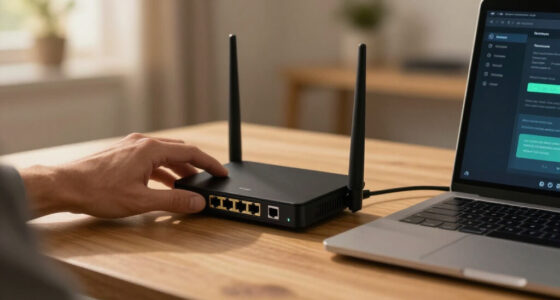
To prepare network gear for remote sites, first document what the building needs and what it can support: internet service, users, devices, power, space, temperature, and security requirements. This site profile tells you whether a standard router and access point will work or whether the location needs extra coverage, backup connectivity, or equipment built for harsher conditions. It also gives you a baseline for later troubleshooting: if the service, layout, or device count changes, you can tell whether the original design still fits.
Write down the internet provider and handoff type, expected bandwidth, number of staff, and devices such as cameras, registers, printers, and phones. Note where people need Wi-Fi, where equipment can be mounted, and whether the room gets dusty, damp, hot, or cold. A small clinic with a front desk, exam rooms, and connected equipment has different coverage needs from a construction trailer with a handful of laptops. The device list matters because each addition can consume bandwidth, switch ports, wireless capacity, or power; counting only people can leave you short even when staffing stays constant.
Power deserves its own check. Confirm outlet locations, available rack or wall space, and whether power quality or outages call for surge protection or a battery backup. A switch that fits the device count may still be a poor choice if it cannot be mounted safely or cooled properly. Industrial and outdoor locations can call for appropriately rated equipment and enclosures. A battery backup can keep networking gear online through a brief interruption, but it adds cost, space, and a battery that must be maintained; it does not replace a plan for a long outage.
Make the profile specific enough that another person can use it. For a new retail site, a simple floor plan marked with the ISP handoff, router, access points, register, and cameras can reveal a long cable run or Wi-Fi dead zone before anyone opens the box. The effort now can save a return visit later, especially when travel is costly or a site can only be accessed during a short window. Your profile is the map; without it, you’re packing by guesswork. [1]
As an affiliate, we earn on qualifying purchases. As an affiliate, we earn on qualifying purchases.business cloud managed router with VPN and multi-WAN failover
Choose gear that can handle the room and the workload
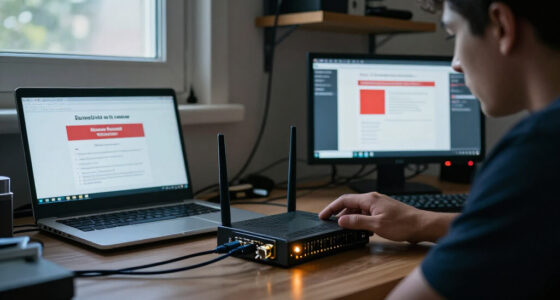
Choose network gear for the site’s actual device load, internet service, wireless coverage, and physical environment. The right equipment is the equipment that has enough capacity, fits the installation, and can operate reliably where it will live; the largest or newest box is not automatically the best fit. Buying excess capacity can raise purchase, licensing, and support costs, while undersizing creates bottlenecks that may be hard to diagnose from afar. Estimate a reasonable near-term margin so ordinary growth does not force an early replacement.
Estimate how many wired ports the site needs today, then account for near-term additions such as a second register or more cameras. Check that the router, switch, and wireless access points work together and support the features your design calls for, including network separation where required. For example, a store may need staff devices and payment terminals handled on separate network segments, according to its approved security design. That separation can limit which devices communicate if one is compromised, but it must be configured consistently across equipment; an unsupported feature or mismatched setting can leave devices isolated or connected to the wrong network.
Then match the hardware to the room. A quiet office closet and a dusty workshop are different environments. Check the vendor’s operating conditions and mounting requirements, and plan for enclosure, airflow, surge protection, or cooling where the site needs them. If you’re selecting network gear for a branch inside a shared building, confirm what space, cabling, and power the building owner will actually provide. Protective enclosures can make equipment viable in harsher spaces, but they can also constrain airflow and make access for maintenance harder, so account for heat and service access rather than treating the enclosure as a complete solution.
Newer approaches such as cloud management, software-defined wide area networking, and cellular connectivity can simplify oversight across many sites. They still require checks for licensing, service availability, device registration, and support during a management-platform outage. Centralized control reduces the need to visit each site for routine changes, but it also makes account security and platform availability part of the network’s operating plan. A cellular modem is useful only when the location has adequate signal and a suitable data plan. In a metal-sided job trailer, for instance, confirm reception where the modem will sit; a coverage map alone does not prove that the signal reaches that corner. [1]
As an affiliate, we earn on qualifying purchases. As an affiliate, we earn on qualifying purchases.4G LTE 5G cellular failover router with external antenna ports
Configure and label each device before it leaves
Configure each device for its destination before shipping, and label the hardware so the installation plan is easy to follow. Preconfiguration cuts the number of decisions an installer must make on site, while clear labels help turn a bundle of nearly identical cables into a usable map. This matters most when the person installing the kit cannot call an IT colleague for every choice: ambiguity becomes extra downtime, and hurried guesses can create faults that are difficult to diagnose remotely.
Apply approved firmware and settings, assign device names, and prepare management access and network segmentation according to your organization’s standards. Plan the site’s IP addresses, subnets, VLANs, DNS, and time settings. Check those address ranges against the networks already in use, including VPN-connected sites; overlapping ranges can make a connection between locations difficult to route. A written plan lets you review those dependencies before deployment and gives support a known reference if the device later behaves unexpectedly.
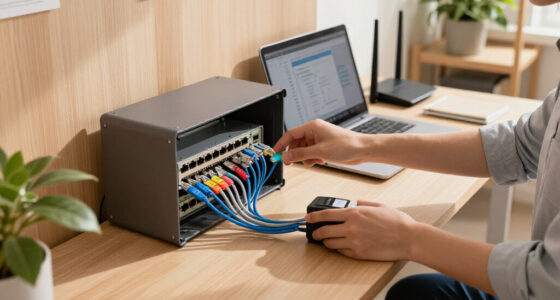
For example, name devices with a location and role, such as “Northside-Store-Router,” using your established naming rules. Label both ends of each cable and identify switch ports on a port map. Mark power supplies too: a pile of identical black adapters is no help when one device needs a different rating. A person following the guide should be able to match “Access point 1” to the right cable, port, and ceiling location. Consistent naming and labeling also reduce the chance that a remote technician asks someone to unplug the wrong device while trying to restore service.
Some vendors support zero-touch provisioning: a registered device can contact a management service and receive its approved configuration when it connects. This can reduce hands-on setup, but it depends on correct registration, working connectivity, and protected credentials. If registration or the service connection fails, the device may not receive the settings needed to come online, so have a documented fallback and an offline copy of the site plan and required recovery details. Automation is a helpful handoff, not a substitute for one. [1]
As an affiliate, we earn on qualifying purchases. As an affiliate, we earn on qualifying purchases.network equipment shipping case with customizable foam
Give your team a secure path to manage the site
Remote support should use a controlled, encrypted management path with unique credentials and the least access each person needs. Keep administrative interfaces off the public internet, use multi-factor authentication where supported, and disable services the deployment does not require. These controls reduce the number of ways an outsider could reach the equipment and limit the damage if an account or device is exposed.
Think of remote management as a locked service door: your support team needs a way in, but strangers should not find an open entrance. A VPN or approved management platform can provide that path when it is configured and monitored properly. Use separate, strong credentials for devices, record who can administer them, and follow your organization’s process for storing secrets. Never leave a factory password in place just because the installer needs quick access. Shared accounts may seem convenient for a small team, but they make it harder to identify who changed a setting or promptly remove one person’s access.
Centralized management can make it easier to see whether routers and access points are online across many locations. It also creates a dependency on the management platform and its access controls. Decide how your team will respond if that platform is unavailable, an account needs to be removed, or a device stops checking in. A small branch may have no local IT support to notice an unusual status light, so monitoring alerts and a named escalation contact matter. Define who receives alerts and what action each alert calls for; otherwise, monitoring can produce noise without shortening an outage.
Before dispatch, test the intended management route using the same kind of connection the site will have. Confirm that an authorized technician can sign in and see the expected device, while administrative access remains limited. If the site opens next Monday, for example, a brief remote check on Friday can catch a missing device registration before the installer is standing beside a blinking switch. Secure access is a planned route, not a last-minute workaround. [1]
As an affiliate, we earn on qualifying purchases. As an affiliate, we earn on qualifying purchases.network cable and port label maker kit
Pack a recovery plan for the connection that might fail
A remote site needs a recovery path that does not depend entirely on the connection or device that may have failed. Decide how the site will continue operating during an internet outage, and how your team can regain access if remote management disappears with that connection. The right level of backup depends on the cost of downtime: a site that can pause for an hour may not need the same investment as one that handles time-sensitive transactions or care.
Possible options include a second internet provider, cellular backup, a spare configured device, or an out-of-band support method. Each choice has limits. Cellular backup needs adequate signal, a data plan, and tested failover settings; data caps or weaker capacity may make it suitable for essential services but not normal workloads. A second provider helps only if its route is sufficiently independent, since two services that share a physical line or upstream failure may go down together. A spare router is less useful if it has no current configuration or nobody knows where it is stored. Weigh the cost and upkeep of each option against how long the site can tolerate being offline.
Write down what staff should do and whom to contact. Keep configuration backups, reset instructions, support details, and a simple description of the recovery steps where an authorized person can find them. Avoid placing secrets in an unsecured box or guide. For a small clinic, the plan might tell staff how to report a failed connection, identify the status lights to describe, and reach the designated support contact while the technician checks the backup link. Clear boundaries matter too: ask local staff to report and observe, and reserve configuration or reset actions for people trained and authorized to do them.
Rehearse the plan before it is urgent. Disconnecting a primary link during a scheduled deployment check can show whether failover works and whether staff know what to expect. If the site relies on a spare device, confirm that it powers on and that the backup configuration is current. A test also reveals tradeoffs, such as whether the backup connection preserves the services the site needs or only basic access. Recovery planning is like keeping a flashlight by the door: it only helps if you can find it and know its batteries still work. [1]
Test the whole deployment kit before the courier arrives
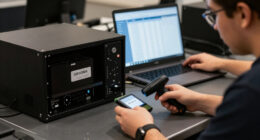
Test the complete kit before dispatch: device configuration, power supplies, optics, cables, labels, and the expected connections. A working router by itself does not prove that the site can be installed; the right parts have to arrive together and make sense to the person unpacking them. A full-kit check tests both technical compatibility and the handoff to the local installer, where remote deployments often lose time.
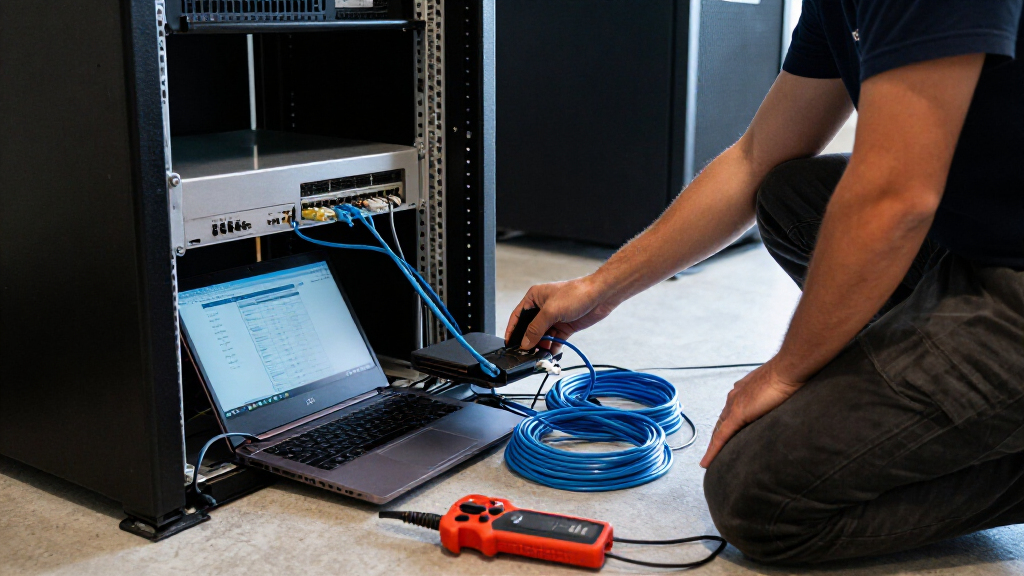
Follow the installation guide as if you were a local installer seeing the equipment for the first time. Match each labeled cable to the port map, check that the power supply fits the device, and verify that the intended devices can connect under the planned settings. Confirm the device names, address assignments, and management access. If a fiber connection needs a particular optic, check that the optic is included and compatible with both ends. This walk-through can expose small mismatches—such as a cable too short to reach the planned location—that a configuration review cannot catch.
Pack a short, readable guide with a site contact, support contact, installation order, and a way to report progress. A few clear photos of the target rack or wall can help an installer identify the right mounting spot. For example, a technician at a temporary construction office might have one hour between other jobs; a numbered port map and labeled power adapter let them move confidently instead of calling someone to identify each part. Keep the guide focused on decisions the installer must make, so critical steps are easy to find under time pressure.
Use a checklist that covers both technology and physical conditions: verified internet handoff, suitable power, mounting location, cable path, wireless coverage assumptions, and any required approvals. If the test reveals a missing cable or ambiguous label, fix the kit before shipment. A checklist creates a repeatable final review across sites, while the walk-through checks whether the written plan makes sense in practice. The quiet bench test is cheaper than discovering a missing optic after the box has crossed town—or crossed an ocean. [1]
Track the shipment and keep a record for the next support call
Protect the equipment in transit, track what you send, and keep an up-to-date record for each site. Good records help your team identify a device, find its backup, and understand its support status without asking someone on site to read tiny lettering from a ceiling-mounted access point. They also make replacements and lifecycle decisions easier because the team can see what is deployed rather than infer it from purchase records.
Use packaging that protects equipment from impact and moisture, and handle items that need electrostatic protection appropriately. Record serial numbers, asset assignments, firmware versions, configuration backups, and vendor support details. Make sure the shipment includes compatible power supplies, cables, optics, labels, the port map, and installation instructions. Tracking is especially useful when the site opening or installation appointment depends on a particular delivery date. A record of what was packed helps distinguish a lost shipment item from a part that was never included.
For example, if a router at a remote warehouse stops responding, a current asset record lets support find the correct configuration backup and check whether the device is still covered by vendor support. Without the serial number or firmware version, the call can turn into a slow hunt through old emails and shipping boxes. Keep records in your approved system and limit access to sensitive configuration information. The record should help support act quickly without exposing credentials to people who do not need them.
Plan how the team will maintain those records after installation. Note any cable or port changes, confirm the final device locations, and update the inventory when equipment is replaced. Firmware and vendor support lifecycles change, so set an update process that accounts for security advisories, operational risk, and a recovery plan. Applying every update immediately may interrupt a site, while delaying critical fixes can leave known weaknesses in place; use a planned review and maintenance window to manage that tradeoff. A record that was accurate on shipping day can become stale after the first repair; the small update after a site visit can save the next one. [1]
Frequently Asked Questions
What equipment should I send to a remote site?
Match the equipment to the user and device count, internet service, wireless coverage, installation conditions, and recovery needs. A small office may need a router, switch, and access points; a dusty industrial location may also need suitable enclosures, surge protection, or cooling. Include compatible power supplies, cables, optics, labels, and the installation guide.
Should I configure devices before shipping?
Usually, yes. Site-specific configuration and a basic connection test reduce work on arrival, provided you handle credentials securely and protect the backup configuration. Make sure the device settings match the site rather than copying an old setup with different address ranges or port labels.
How can I manage a remote site securely?
Use an approved encrypted management route, such as a VPN or controlled management platform, with unique credentials and limited permissions. Turn on multi-factor authentication where supported, monitor access, and avoid exposing administrative interfaces directly to the public internet. Confirm that an authorized technician can reach the device before dispatch.
What should I do if the site’s internet fails?
Use the recovery option you planned for that site, such as a second provider, tested cellular failover, a spare device, or an out-of-band support path. Cellular backup needs adequate signal at the device location, a suitable data plan, and verified failover settings. Keep clear steps and a support contact available to authorized local staff.
How do I prevent address conflicts between sites?
Coordinate each site’s subnets with your existing networks and VPN-connected locations before configuring devices. Record the ranges centrally and check that the new site does not reuse a range already in use elsewhere. This avoids routing problems when users or systems need to communicate across locations.
What is easy to overlook before equipment ships?
Physical installation details are easy to miss: where the internet handoff sits, whether the power supply reaches the outlet, how equipment mounts, and whether Wi-Fi reaches the work area. Labels matter too. A correctly configured device can still be hard to install if its ports, cables, and power supply are unclear.
Conclusion
Before you ship network gear, ask one practical question: could a capable person at the site connect it using only the labels, guide, and support path you packed? If the answer is no, tighten the site plan, complete the test, or add the missing detail.
Good preparation makes a remote site feel less remote. A clear port map, a tested backup, and one current record can turn a dark closet full of blinking lights into a network your team can support from anywhere.
Halloween Picks
halloween
As an affiliate, we earn on qualifying purchases.